

Resolving Missing Toolbars in SOLIDWORKS
Working in SOLIDWORKS requires quick access to various toolbars and the Command Manager for efficient modelling and drafting. However, users occasionally encounter situations where toolbars such as Features, Sketch, Assembly, or even the entire Command Manager disappear from the interface. This can interrupt workflow and reduce productivity.
While working on a part, assembly, or drawing document, you may notice that commonly used toolbars are no longer visible. In such cases, SOLIDWORKS may appear to be missing important commands even though they are still available within the software.
The Toolbars Could Not Be Found
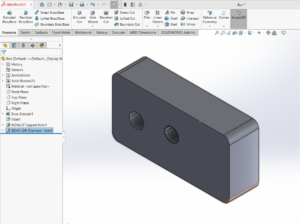
One of the most common scenarios occurs when the Command Manager is accidentally disabled or toolbar settings are modified. As a result, users may find that the toolbar area appears blank, as shown below.
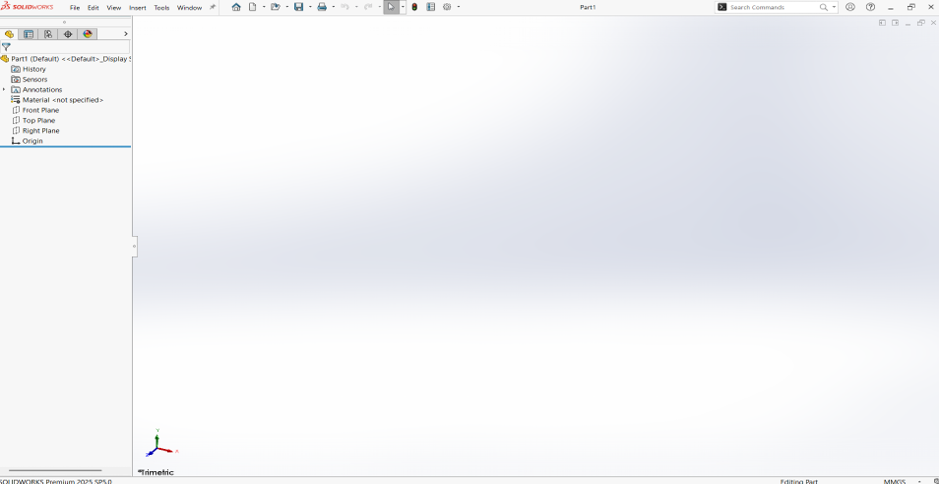
When this happens, SOLIDWORKS is not actually missing the commands. Instead, the toolbar visibility settings have been altered, preventing the interface from displaying the required tools.
Restoring Missing Toolbars in SOLIDWORKS
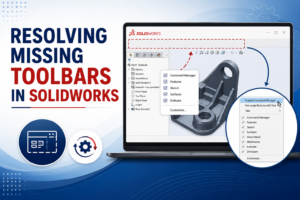
To restore the missing toolbars, right-click in an empty area near the top of the SOLIDWORKS window where the toolbars are normally displayed.
A list of available toolbars will appear. From this list, ensure that Command Manager is enabled.
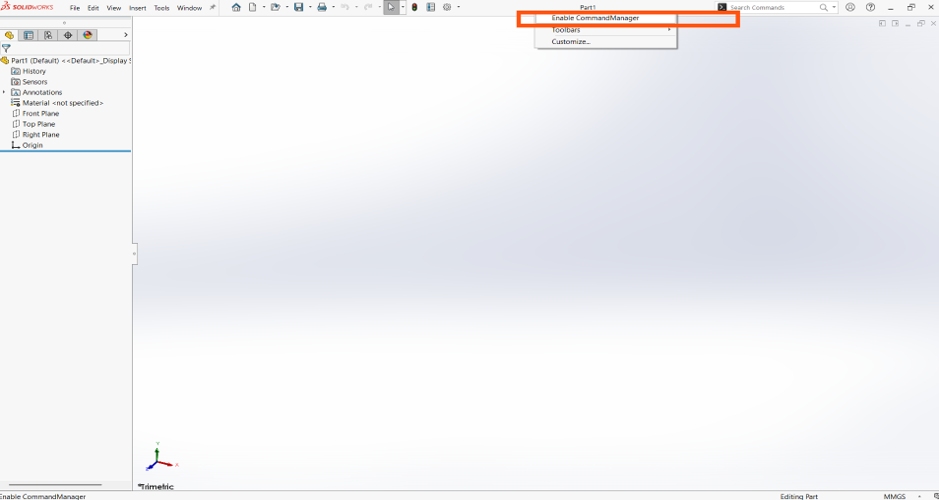
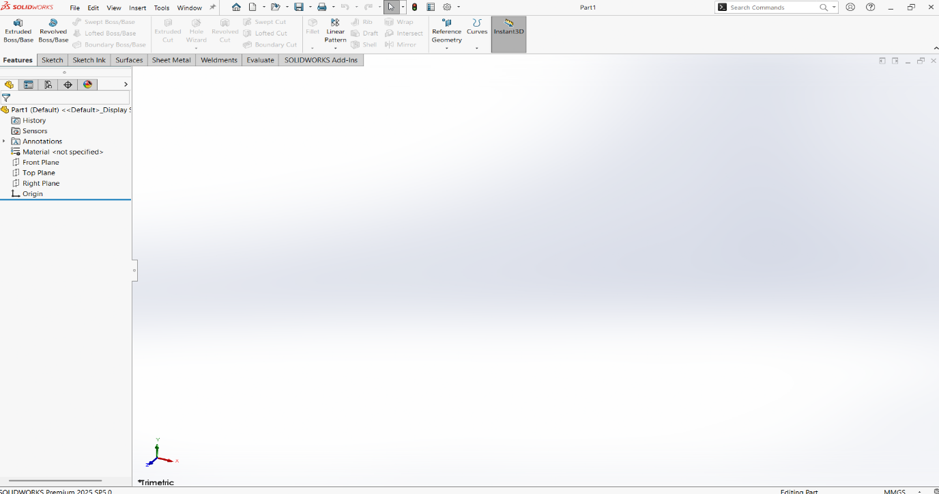
If a specific toolbar such as Features, Sketch, or Evaluate is missing, select it from the same list to make it visible again.
Resetting Toolbar Customization
If enabling the toolbar does not resolve the issue, the toolbar customization settings may have become corrupted.
To reset the toolbar settings:
- Click Tools → Customize
- Open the Toolbars tab
- Click Reset to Defaults
- Click OK
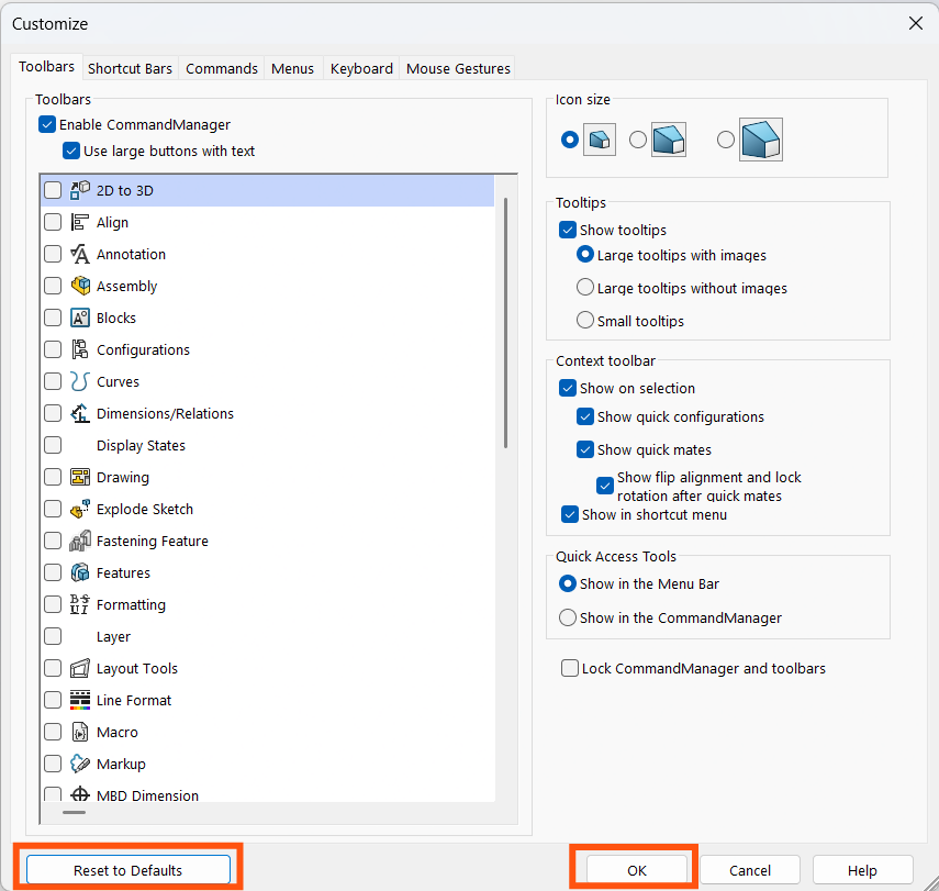
This action restores the default SOLIDWORKS toolbar layout and often resolves missing toolbar issues.
Restoring the Command Manager
In some situations, the Command Manager itself may be hidden.
To restore it:
- Right-click in the toolbar region.
- Select Command Manager.
- Verify that tabs such as Features, Sketch, Surfaces, and Evaluate are displayed.
Once enabled, the Command Manager will reappear and provide access to all standard SOLIDWORKS commands.
Saving the Updated Interface Settings
After successfully restoring the toolbars, it is recommended to save your customized settings.
This can be done using the Copy Settings Wizard, which allows users to back up their interface configuration for future use.
By saving the settings, you can quickly restore your preferred toolbar layout if similar issues occur again.
In this blog, we addressed the issue of missing toolbars and Command Manager tabs in SOLIDWORKS. The most common cause of this issue is accidental modification of toolbar visibility settings or corrupted customization preferences.
The first step in resolving the issue is to enable the missing toolbars from the toolbar context menu. If the issue persists, resetting the toolbar customization settings will restore the default interface. Finally, saving the updated configuration ensures that the preferred toolbar layout can be easily recovered in the future.
By following the above steps, users can quickly restore their SOLIDWORKS workspace and avoid unnecessary downtime caused by missing toolbars.
Author Details:

Prajwal V is a Customer Success Associate at Conceptia Konnect, based in Bengaluru, India. He has experience in SOLIDWORKS solutions, specializing in technical support, solution implementation, and customer enablement, helping organizations maximize the value of their engineering solutions.