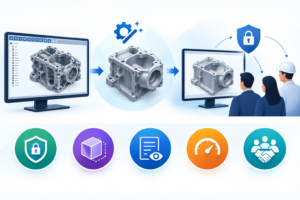


While sharing the CAD data with people outside an organization such as customers, suppliers, contractors, and other stake holders, it is not only important to share the data but also to protect the Intellectual property (IP) of the file. In general, SOLIDWORKS Assemblies may contain IP related information in the form of mechanisms, dimensions, design features, and components. These details are important and should not be shared outside the organization. SOLIDWORKS provides a useful tool called “Defeature,” which can aid in providing simplified representations of the assemblies/parts while removing unwanted design details and features.
The tool provides the CAD data in such a way that it is easier to understand the overall geometry of the assembly/part and not require the details of the original design.
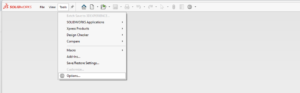
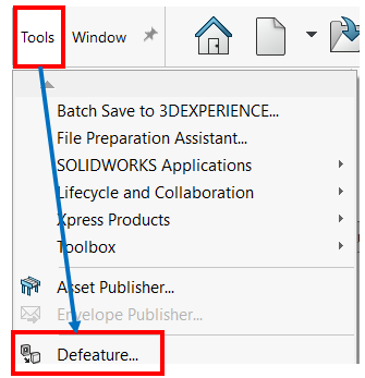
This tool can be accessed from Tools – Defeature in drop down menu
The Defeature tool presents two different defeaturing methods to start with:
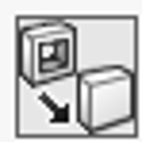
Simplifies the geometry of the assembly/part by removing the internal parts and features. This method is useful when the overall shape of the defeatured assembly/part needs to closely match the shape of the original geometry.
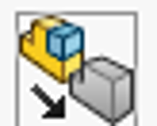
Simplifies the geometry of the assembly/part by removing the internal parts and features and creating the silhouettes of the assembly/parts. This method is useful when the overall shape of the assembly/part need not match the shape of the original geometry.
To demonstrate the effects of the Defeature tool, we will consider the example of a gear box assembly and try to defeature it. The below pictures show the full assembly and the section view of the assembly to show the internal parts.
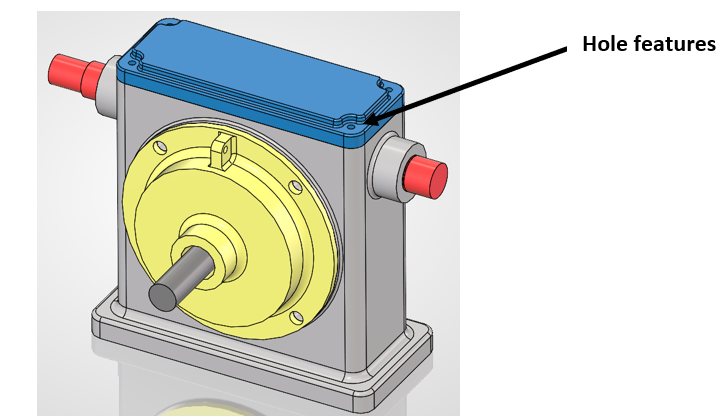
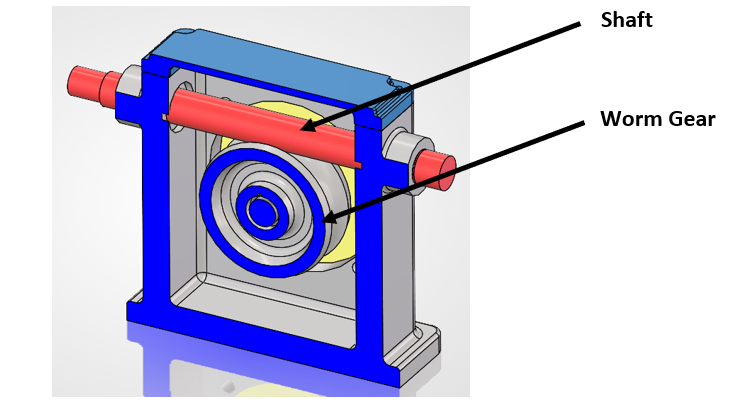
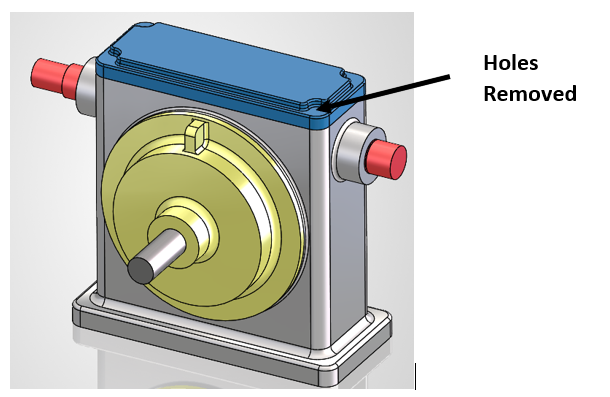
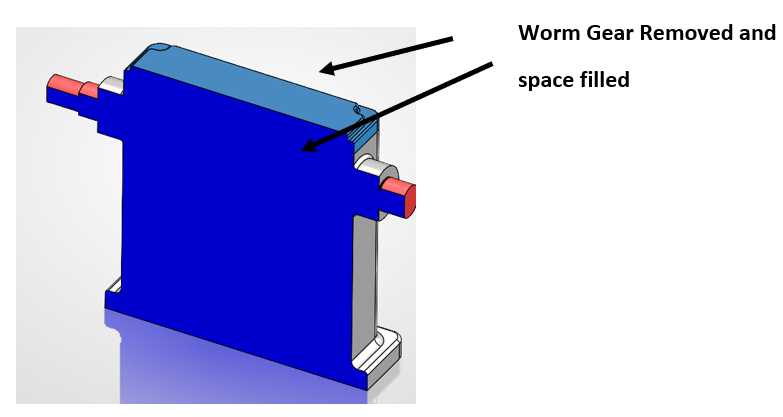
To simplify the assembly by removing the design details to preserve the exterior geometry, we will remove the internal worm gear and the hole features using the Defeature tool. When the defeature, tool is executed, the tool removes all the hole features and the worm gear, which is the internal component. After removing the worm gear, the space is filled as shown as a solid body. By doing so, the shaft component also cannot be seen separately. In this way, the defeature tool not only preserves the exterior shape of the assembly but also can remove design features and important internal components to preserve the model’s IP.
- Protects Intellectual Property: The Defeature Tool helps remove internal components and proprietary design details before sharing a SOLIDWORKS model with customers, suppliers, or external stakeholders.
- Creates Simplified Models: Unnecessary features such as holes, fillets, ribs, and other detailed geometry can be removed to create a clean and lightweight representation of the product.
- Controls Shared Information: Engineers can retain only the external geometry and interfaces required by the recipient, ensuring that confidential design information is not unnecessarily exposed.
- Improves Model Performance: Defeatured models contain less geometry and detail, which can make them easier to open, handle, and use in large assembly environments.
- Supports Safer External Collaboration: By creating a separate, simplified model instead of sharing the original production assembly, organizations can balance customer requirements with effective CAD data and IP protection.
The SOLIDWORKS Defeature Tool is a useful feature for simplifying CAD models while protecting important design information. It allows engineers to remove internal components, unwanted features and detailed geometry before sharing the model with external stakeholders. By sharing only the required level of design information, companies can improve collaboration, reduce model complexity and, most importantly, protect their valuable Intellectual Property (IP).