

SOLIDWORKS Standalone licenses (serial numbers beginning with 9000 …) are locked to a specific computer and its associated hardware ID. In certain circumstances, it may be necessary to transfer the license from the current system to enable activation on a different computer. This transfer process is commonly required in scenarios such as hardware replacement, system upgrades, or device reassignment.
Transferring a SOLIDWORKS Standalone license may be necessary under the following circumstances:
- Switching between a desktop and a laptop
- Purchasing or replacing a computer
- Performing significant hardware changes (such as installing a new hard drive)
- Reformatting the computer or reinstalling the operating system.
Before transferring, verify which serial number you are about to deactivate.
Go to Help > About SOLIDWORKS.
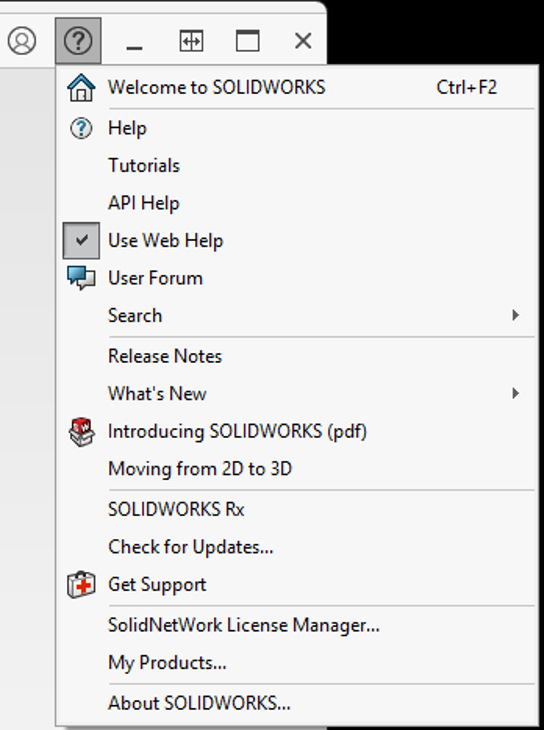
Click ‘Show Serial Number’.
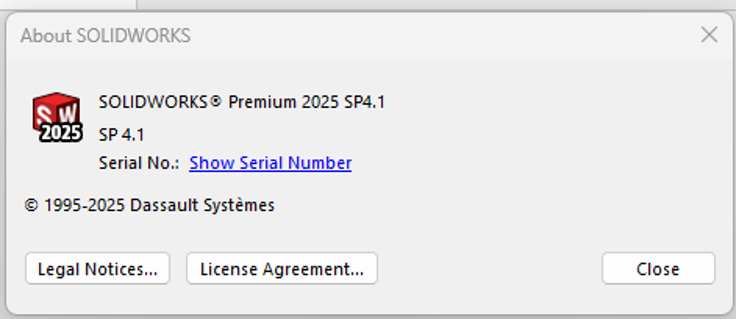
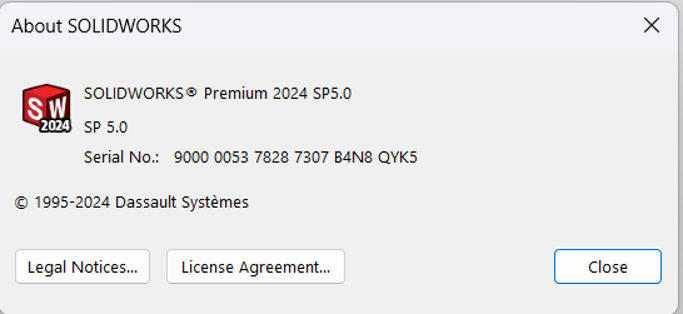
This will be a 24-digit alphanumeric license number. Use this serial number to install on the other computer.
To remove the SOLIDWORKS activation from the current computer, a deactivation process will need to take place.
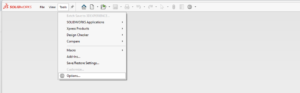
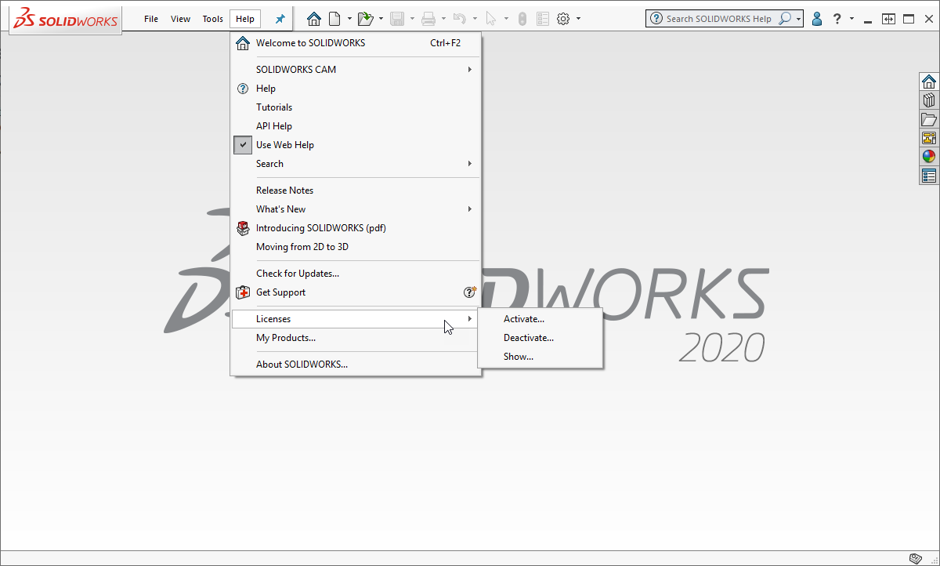
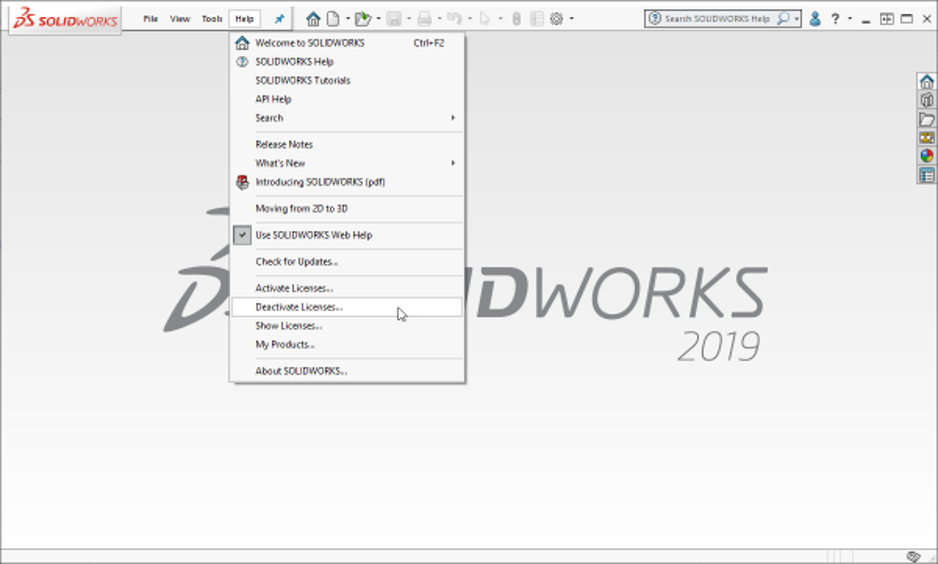
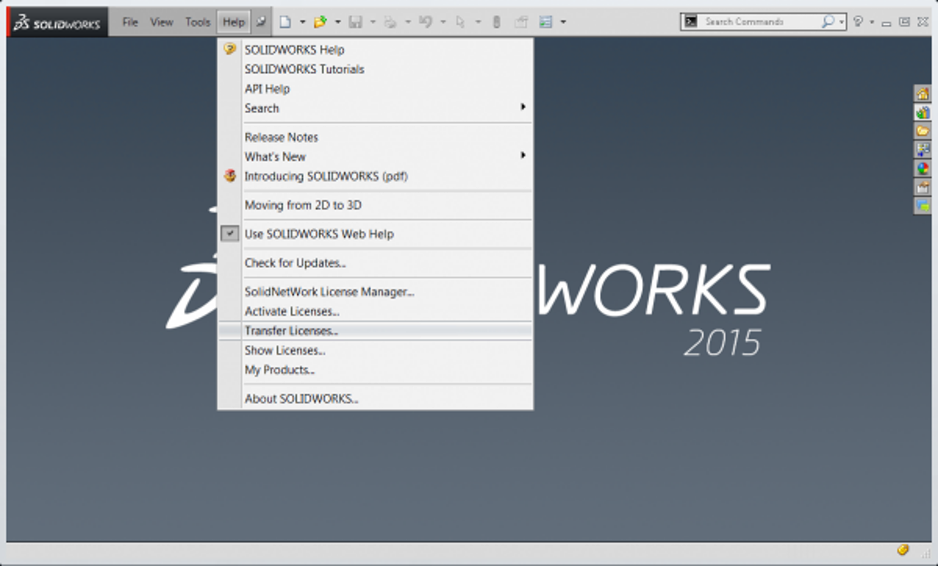
Depending on the version of SOLIDWORKS you are using, this may be located in different places in the Help menu when SOLIDWORKS is open.
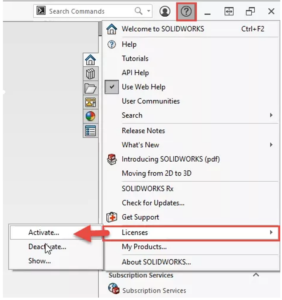
- SOLIDWORKS 2020 and newer will be under Help > Licenses > Deactivate…
- For SOLIDWORKS 2020 SP3 and newer, the Help menu is now the “?” in the top right.
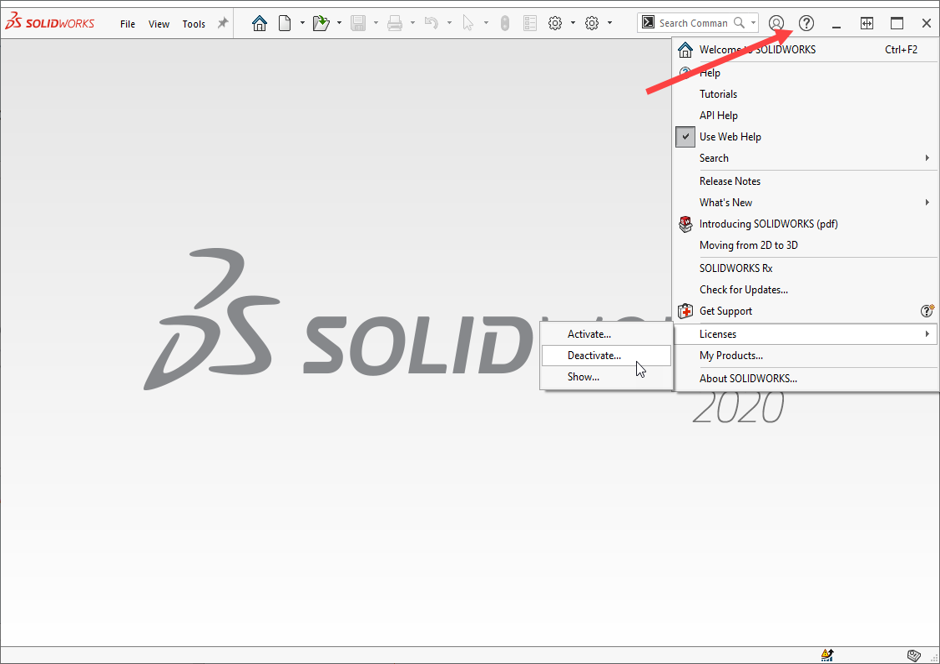
- SOLIDWORKS 2016 through 2019 will be under Help > Deactivate Licenses…
- SOLIDWORKS 2015 and prior will be under Help > Transfer Licenses…
- AUTOMATICALLY OVER THE INTERNET
Select the product(s) you wish to transfer from the list, then choose Automatically over the Internet if an internet connection is available.
Click Next to continue.
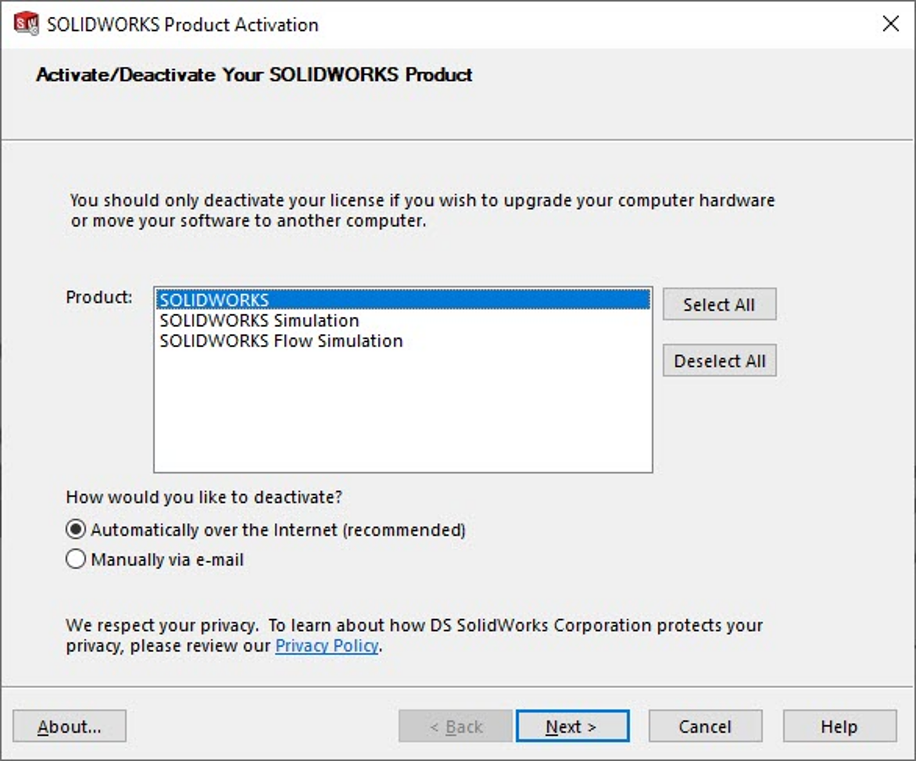
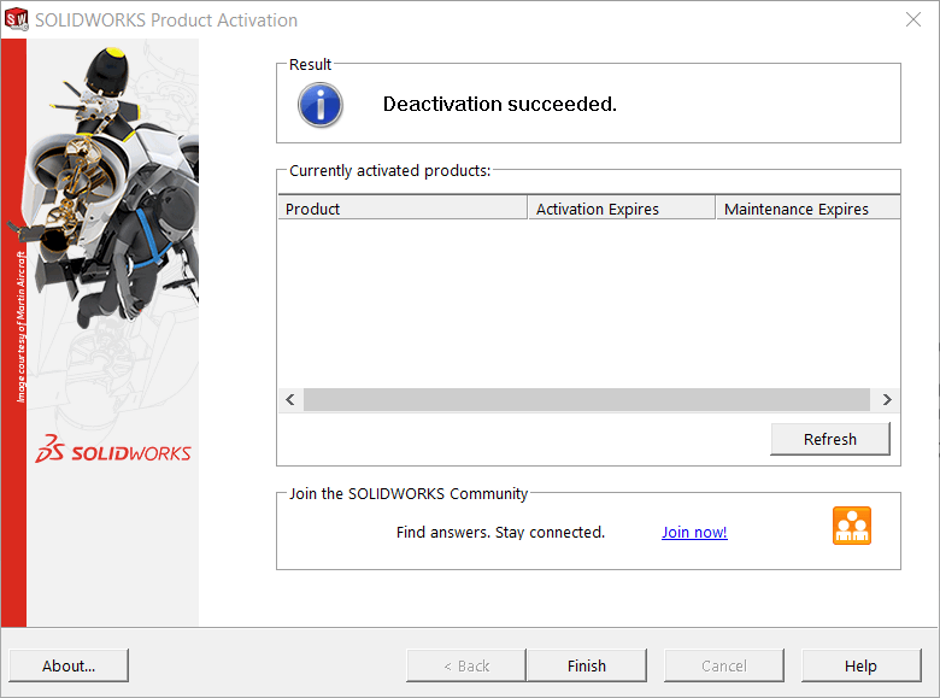
The Automatic method will finish the deactivation after a few moments and provide a message that it has been successful.
- MANUAL VIA E-MAIL
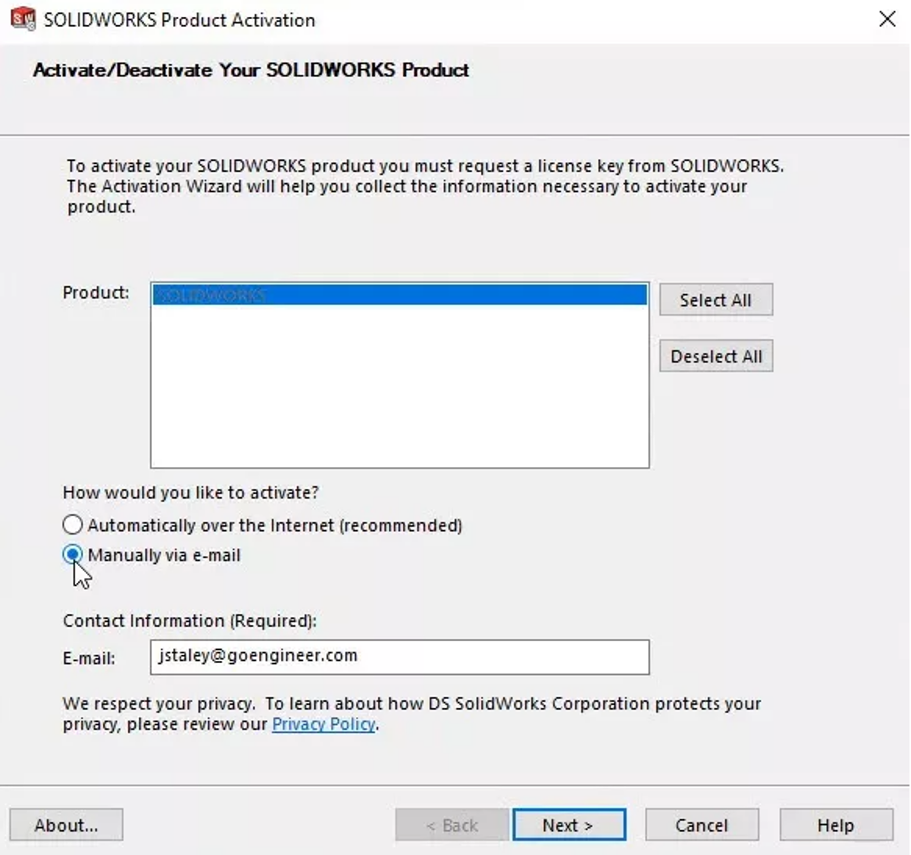
For the Manual via email method, save the Request file when prompted.
Copy the file to a computer with internet access and email it to activation@solidworks.com.
You will receive a reply within about 10 minutes with a Response file.
Copy this file back to the SOLIDWORKS computer, repeat the Manual Deactivation process, and select Open to load the Response file.
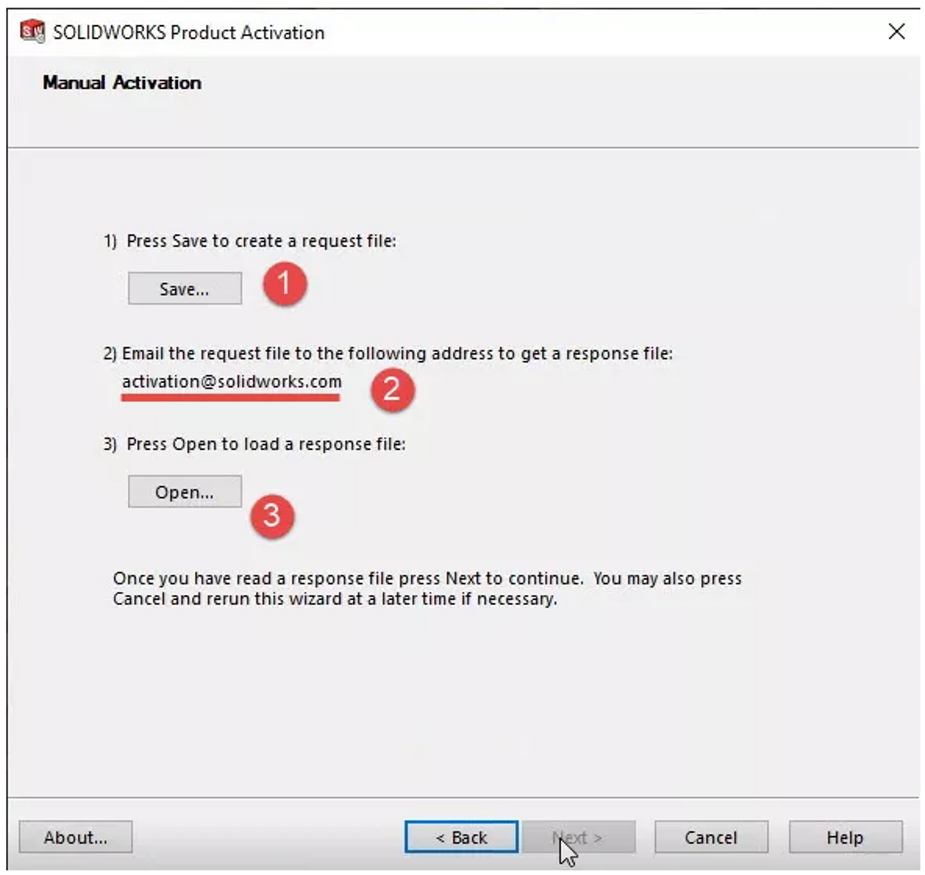
This completes the deactivation process.
- ACTIVATION PROCESS
After installing SOLIDWORKS on the new computer, the software will ask you to activate it when it is first opened. If it does not, or if you are using the 30-day grace period, click Help > Activate Licenses to start the activation process.
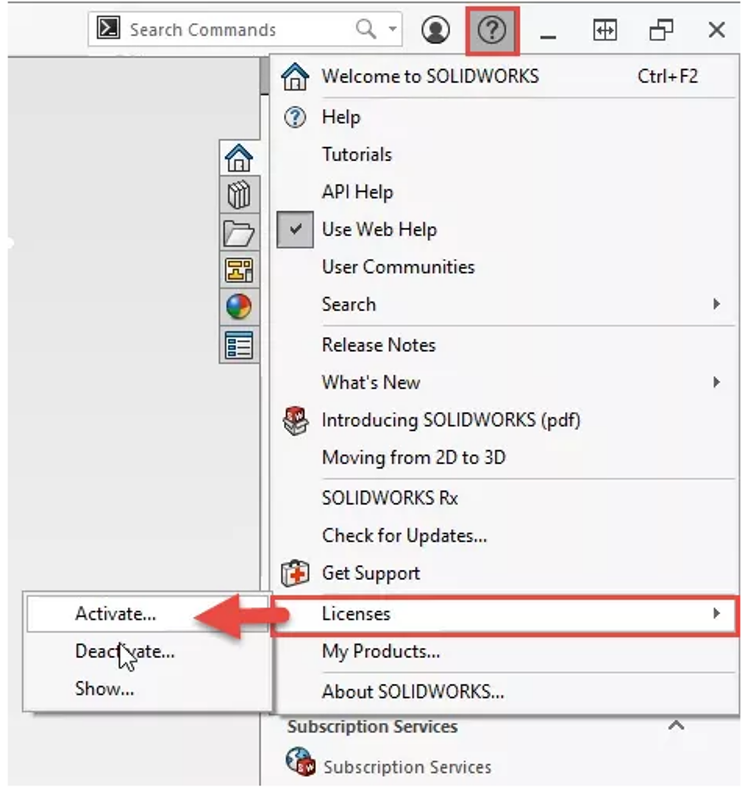
From here, the steps are the same as the steps above.