


After installing SOLIDWORKS, some basic settings should be verified and configured before starting design work. These settings ensure that templates, Toolbox data, file locations, and backup options are correctly configured.
Following these steps helps maintain consistency, prevents data loss, and ensures SOLIDWORKS functions according to company standards.
Where to Find Settings in the SOLIDWORKS Interface:
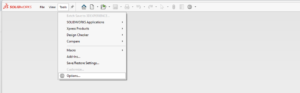
Navigation Path
Top Menu Bar → Options (Gear Icon ⚙)→ System Options
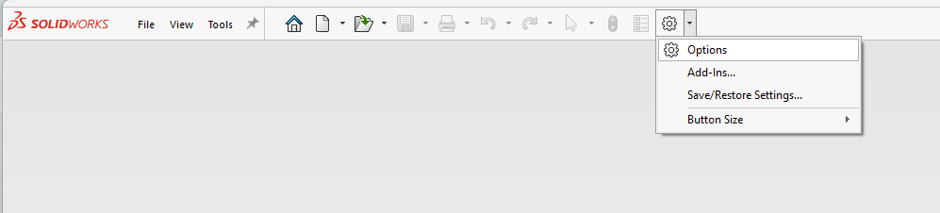
Or
Tools → Options → System Options
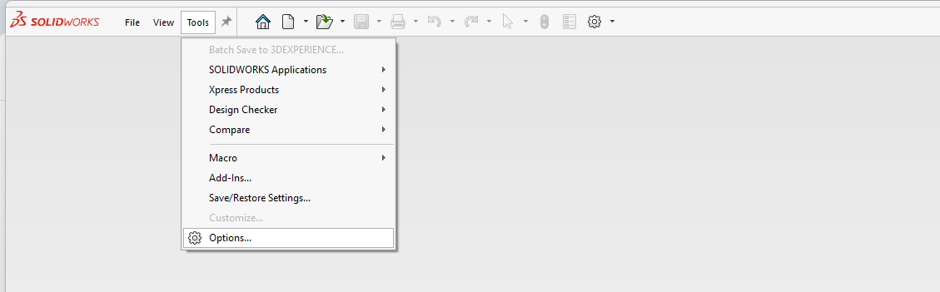
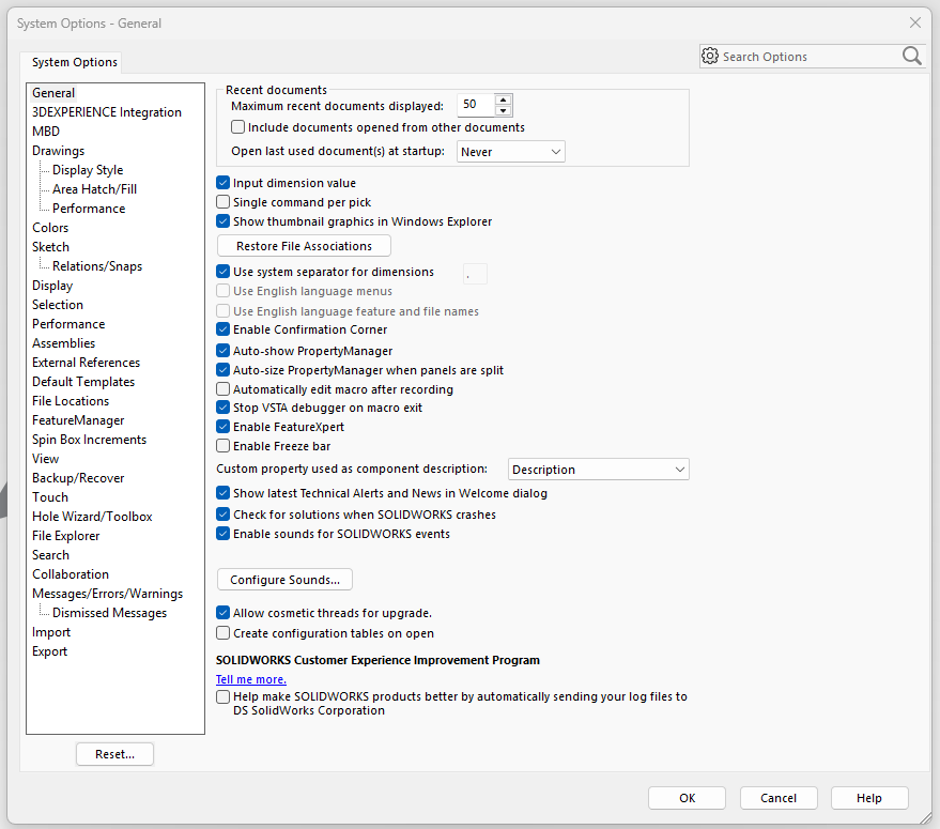
Mandatory Post-Installation Settings Review
After installing SOLIDWORKS, the following system options should be verified and configured before starting any design work:
- Default Templates (Part, Assembly, and Drawing)
- Template Paths Verification
- File Locations Configuration
- Backup and Recovery Settings
- Hole Wizard / Toolbox Location Verification
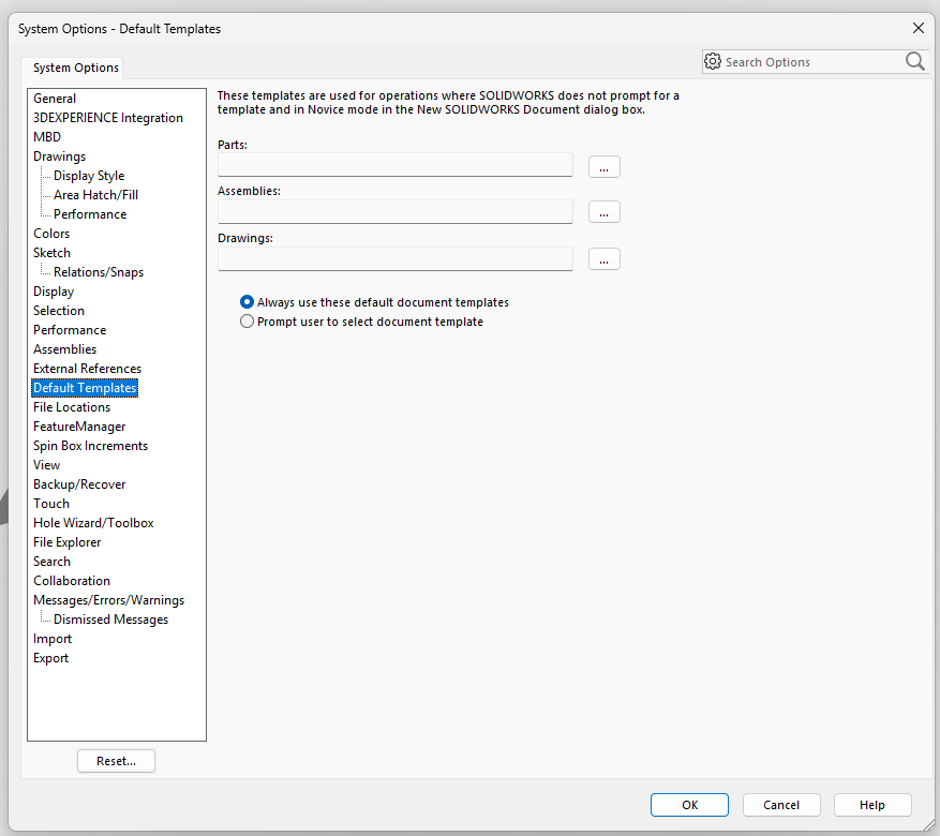
Verify Default Templates
- Select Default Templates from the System Options list.
- Default templates define the standard settings used when creating new Parts, Assemblies, and Drawings.
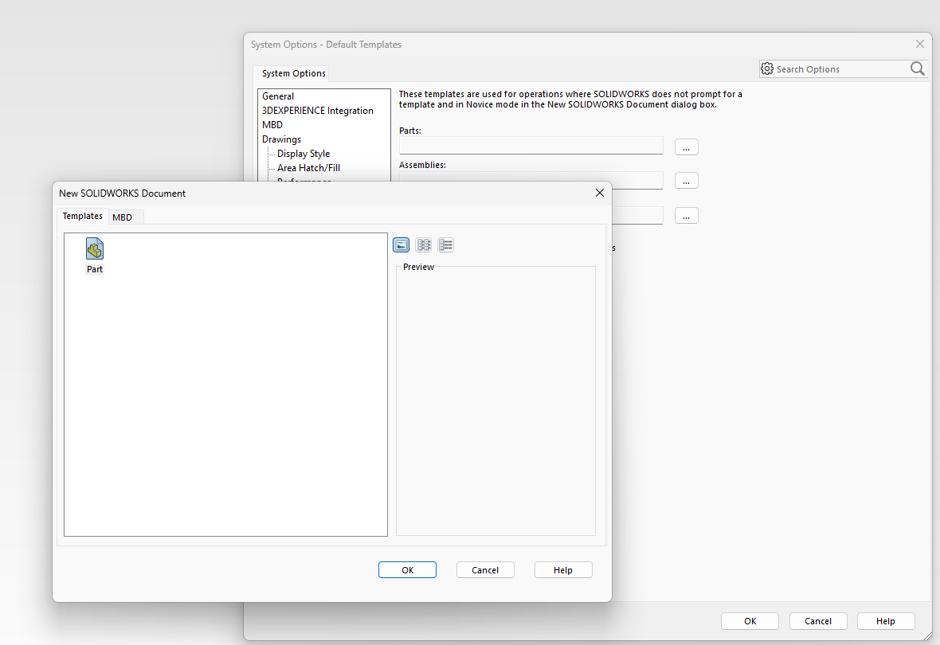
Configure Part Template
- Click the browse button next to Part and select the required company-approved template.
- Ensures all new part files start with the correct units, properties, and standards.
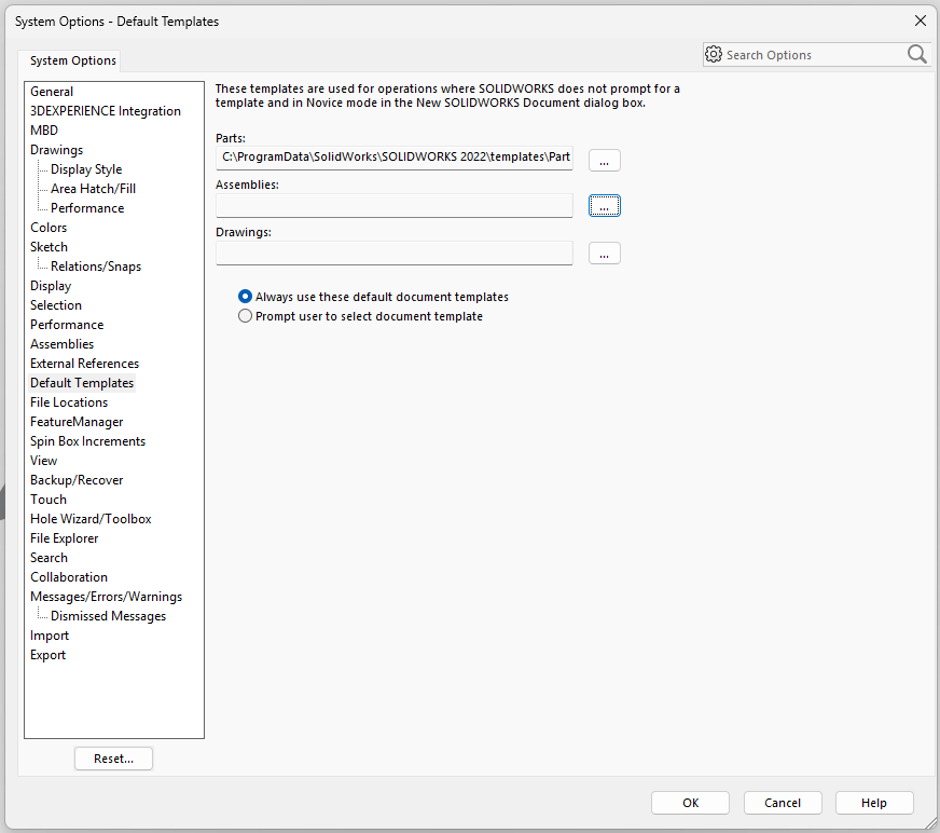
Verify Template Path
- Confirm that the correct template location is displayed in the Part template field.
- Prevents the creation of files with incorrect template settings.
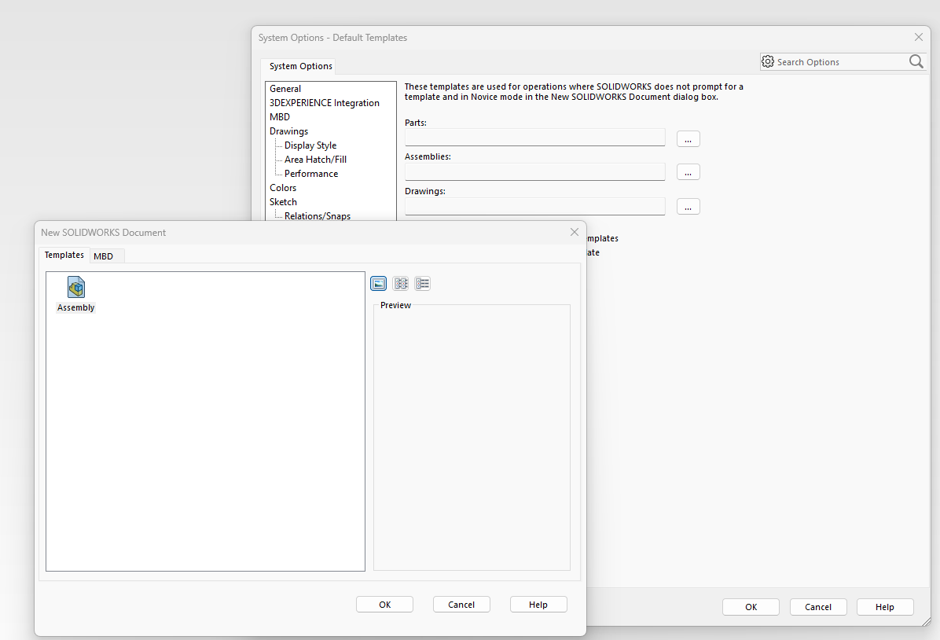
Configure Assembly Template
- Click the browse button next to Assembly and select the approved Assembly template.
- Maintains consistent assembly settings and company standards.
Maintains consistent assembly settings and company standards.
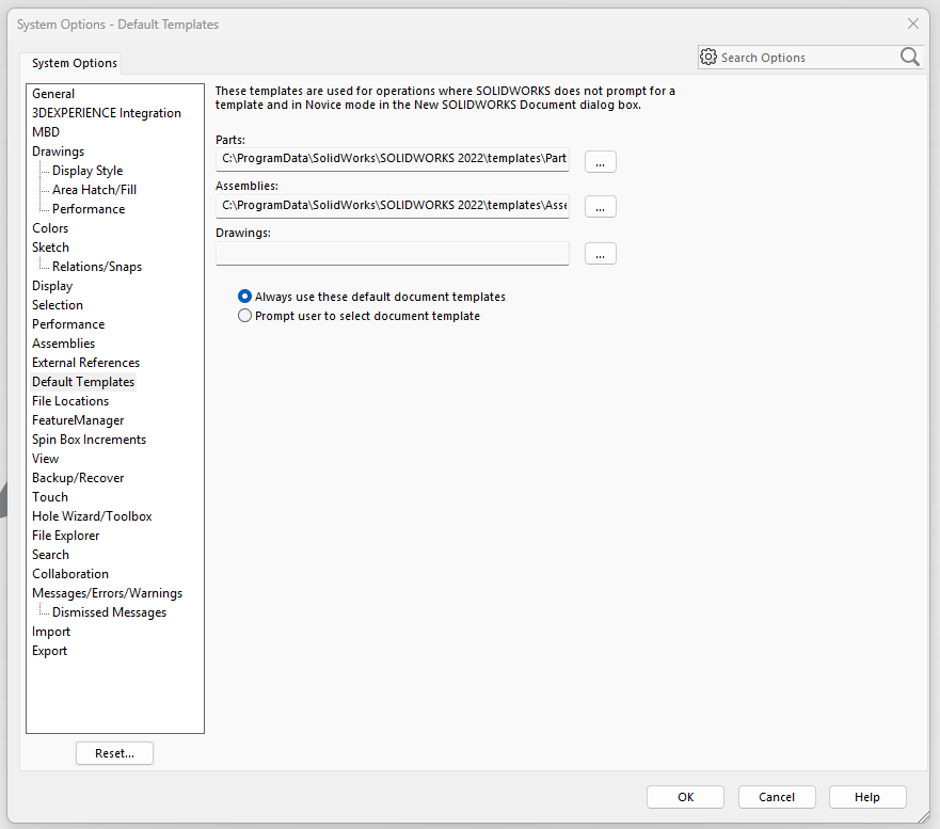
Verify Assembly Template
- Ensures all new assemblies use the approved company template.
- Confirm the correct Assembly template path is displayed.
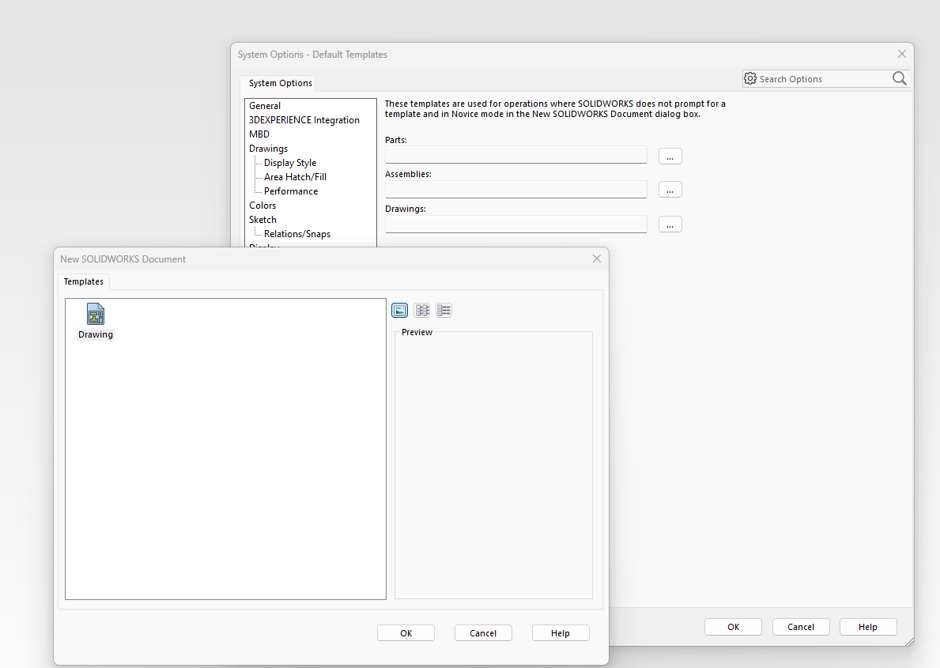
Configure Drawing Template
- Click the browse button next to Drawing and select the approved Drawing template.
- Ensures standard sheet formats, dimensions, and drafting settings are applied.
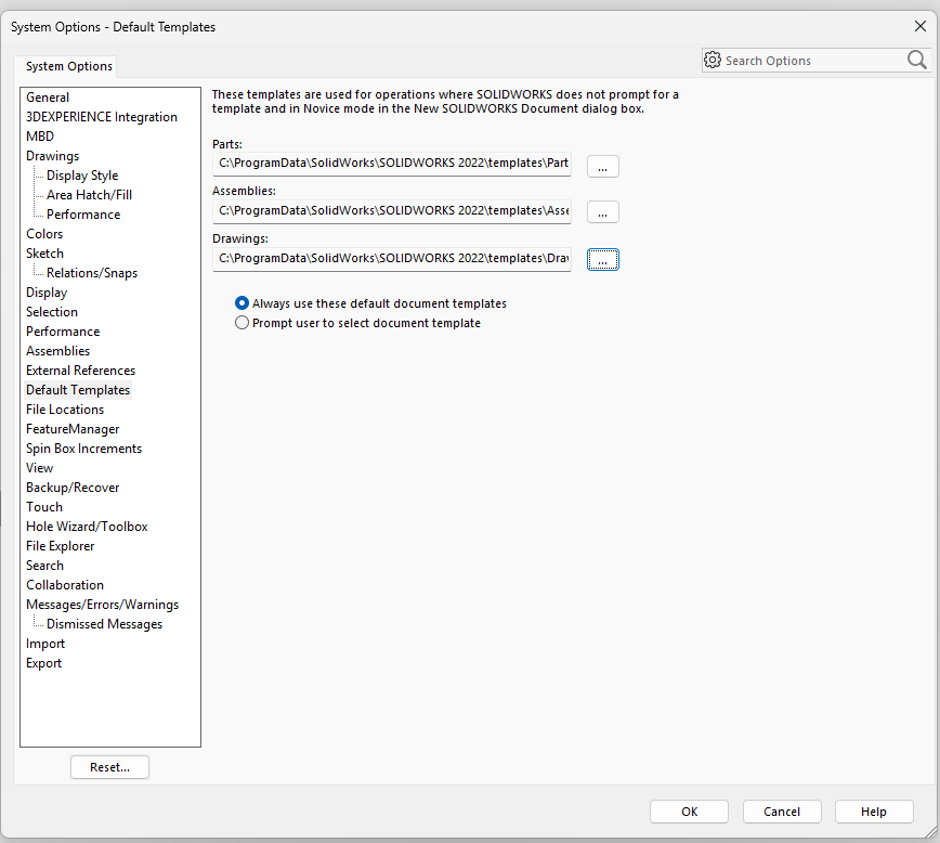
Verify Drawing Template
- Confirm the correct Drawing template path is displayed.
- Ensures all drawings follow the required drafting standards.
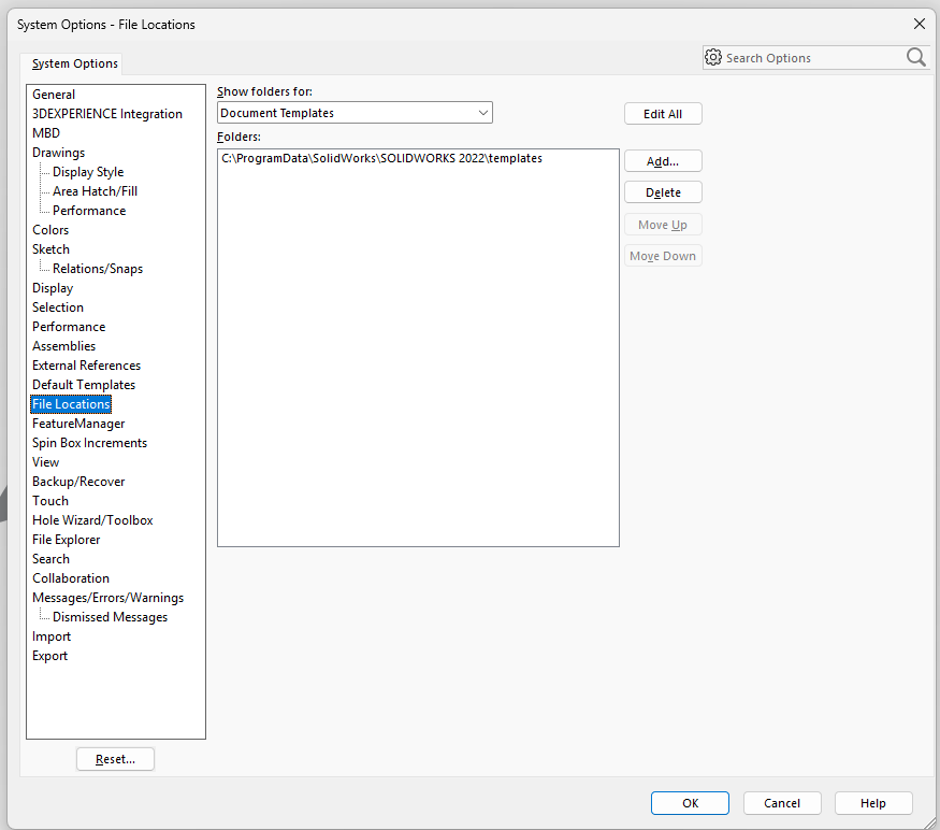
Check File Locations
- Navigate to File Locations and verify the required folder paths.
- Ensures SOLIDWORKS can locate templates, design libraries, Toolbox files, and other resources.
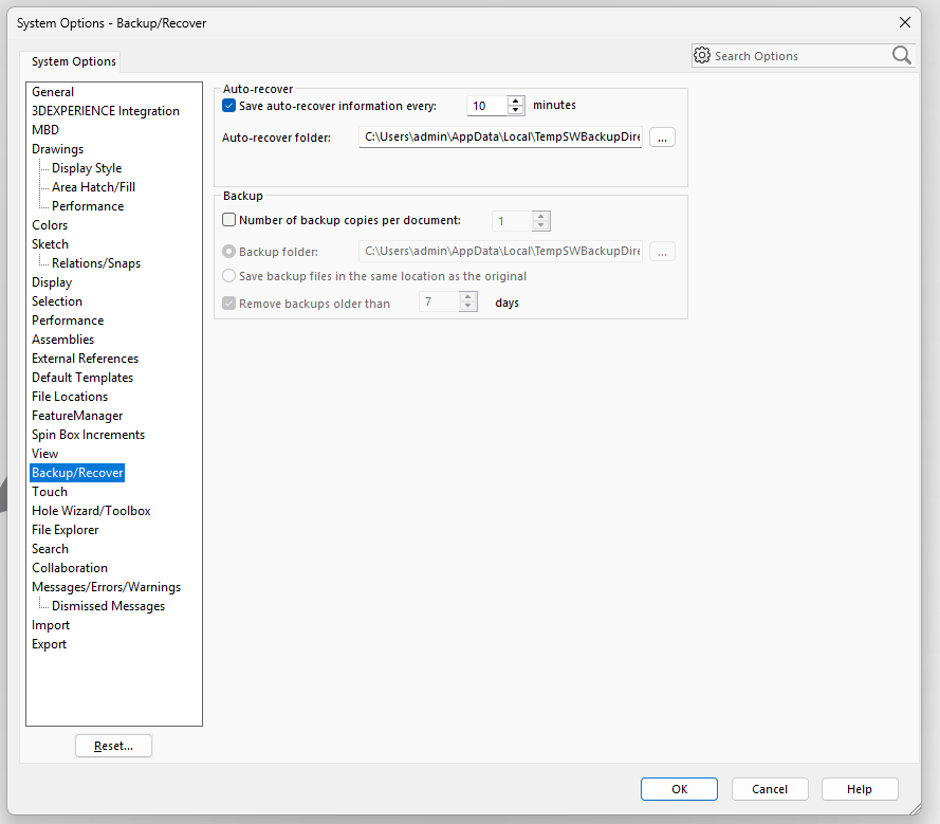
Configure Backup Settings
- Navigate to Backup/Recover and verify Auto-Recover settings.
- Protects work from unexpected software or system failures.
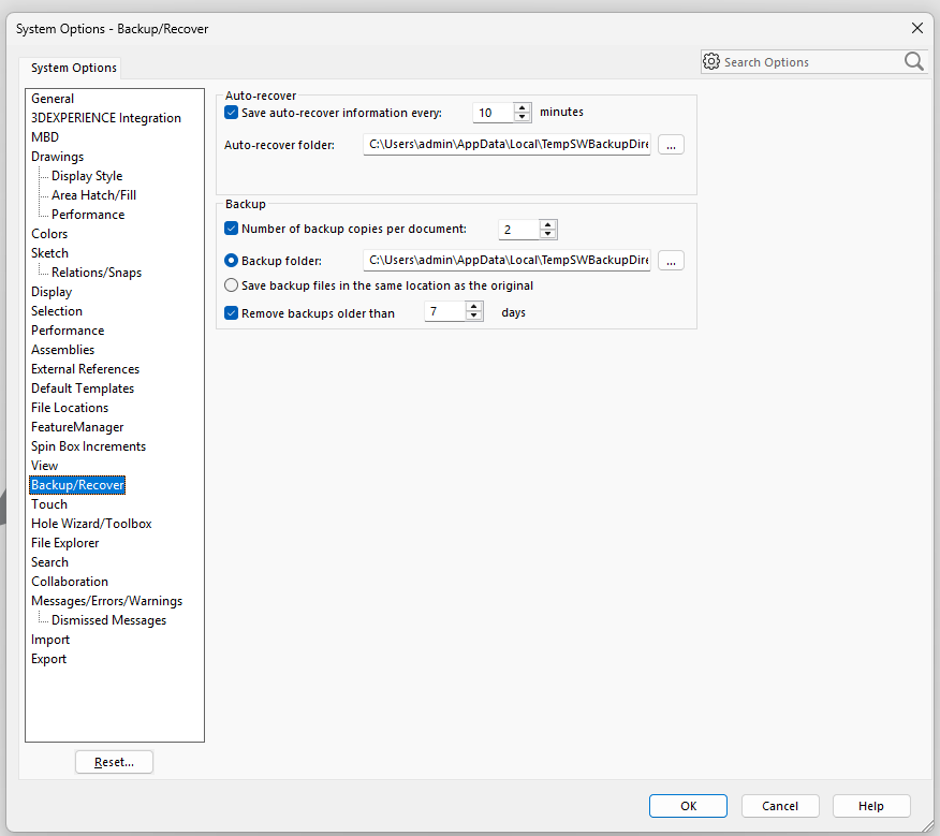
Verify Backup Folder
- Confirm that the backup folder path is valid and accessible.
- Allows recovery of files in case of accidental closure or system crash.
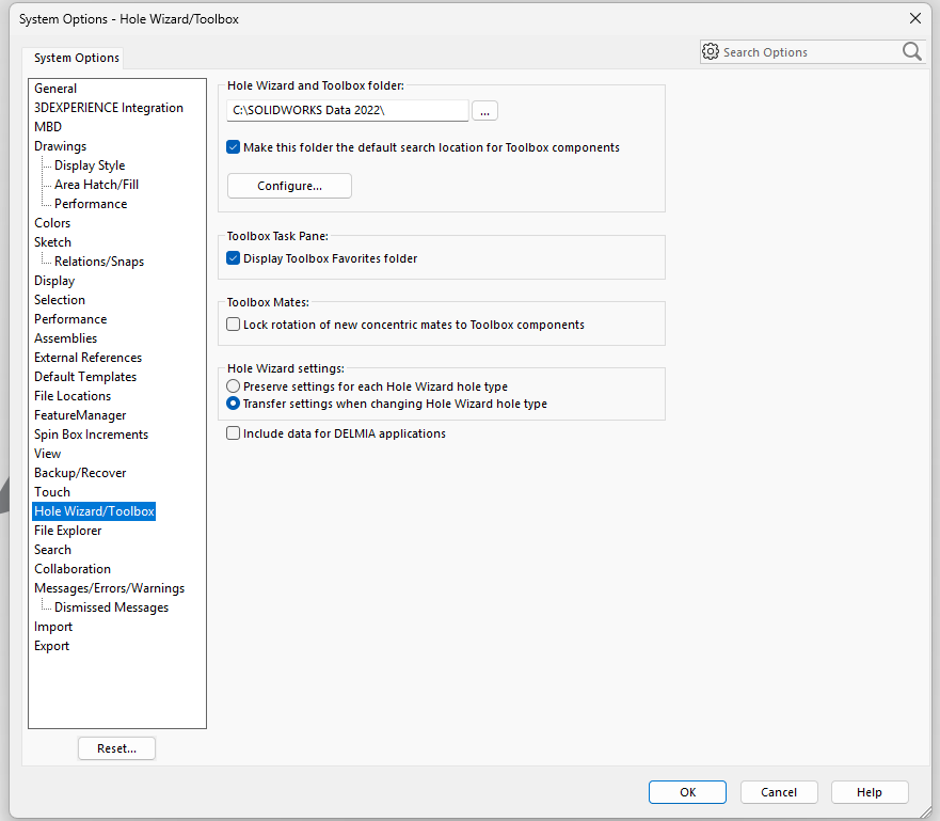
Verify Toolbox Location
- Navigate to Hole Wizard/Toolbox and confirm the Toolbox data location.
- Ensures standard hardware components and Hole Wizard features function correctly.
- Ensure the Toolbox data location matches the installed SOLIDWORKS version (for example, SOLIDWORKS 2022 should point to the SOLIDWORKS 2022 Data folder).