

1)Auto Generate Drawing
Nowadays, we’re all excited to see how fast AI is growing in every field and now, it has finally arrived in SOLIDWORKS! Now, that transformation has reached the design world as well. With the latest advancements in SOLIDWORKS 2026, AI has officially stepped into one of the most time-consuming parts of engineering: drawing creation.
Earlier, creating drawings with predefined views was mostly a manual task. Users had to add each view individually, arrange them, and adjust scales and annotations. Although it worked, the process was repetitive and time-consuming.
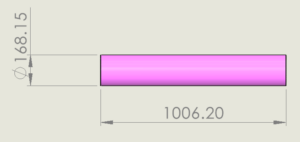
You can now use the power of AI in SOLIDWORKS to automatically generate drawings from native models or imported geometry. Simply select the required parts or assemblies and choose Auto Generate Drawings
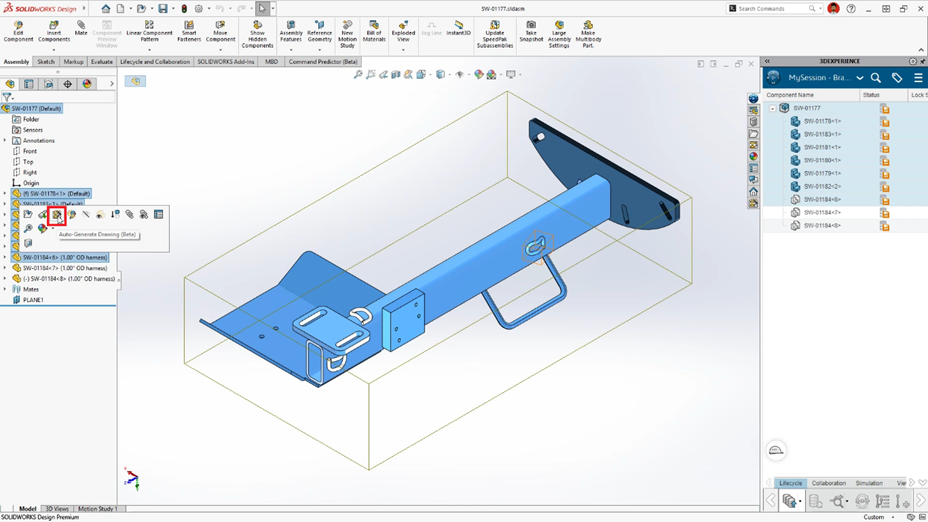
AI can perform typical drawing tasks, including determining the best-fit template and sheet size, inserting and scaling views to avoid overlapping, and identifying geometry to generate section views, hole callouts, tolerances, and reference dimensions. BOMs, balloons, and revision tables are all added automatically to assemblies. With most repetitive processes completed, only minimal cleanup and final detailing are required, allowing you to create drawings more quickly while maintaining quality and accuracy.
The process runs in the background, allowing you to continue your work without interruption. This enhancement helps engineers create detailed, professional drawings faster than ever saving time, reducing effort, and improving overall productivity.
2) Magnetic Line
In SOLIDWORKS 2026, magnetic lines are more powerful than ever. During many customer meetings, we noticed that users often struggle to align annotations neatly on drawing sheets. Earlier, this feature was limited to balloons but that has changed. Now, magnetic lines work not only with balloons, but also with notes, weld symbols, surface finish symbols, revision symbols, and geometric tolerances, making annotation alignment much easier and more flexible.
Step 1: Click on the Magnetic line option from the command manager
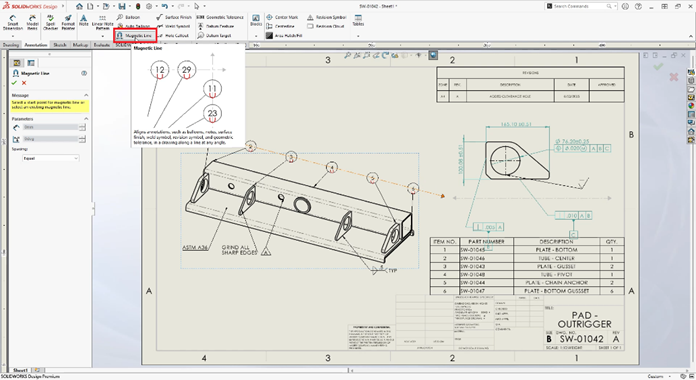
Step 2: Drag and drop the magnetic line over the text, symbols etc.
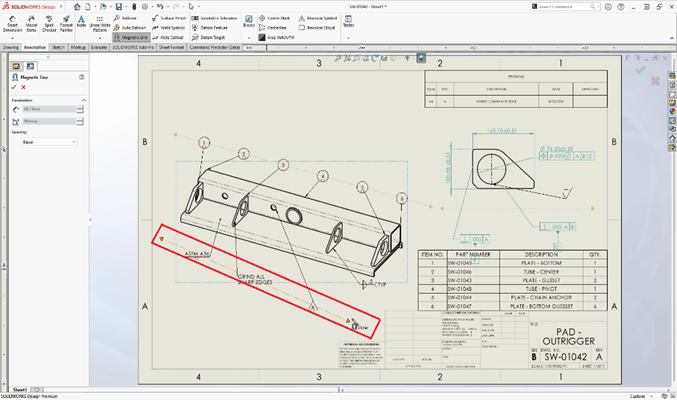
This is a small enhancement, but it quickly helps Design Engineers to create cleaner, more professional-looking drawings with minimal effort
3) Magnetic Line
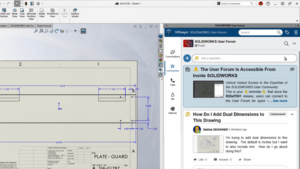
Drawings with too many dimensions can look messy, be hard to read, and may cause mistakes during manufacturing. In SOLIDWORKS 2026, this feature is even smarter it now includes for breaks around dimension text.
Step 1: Select one or more dimensions, then right click and select Break dimension Line
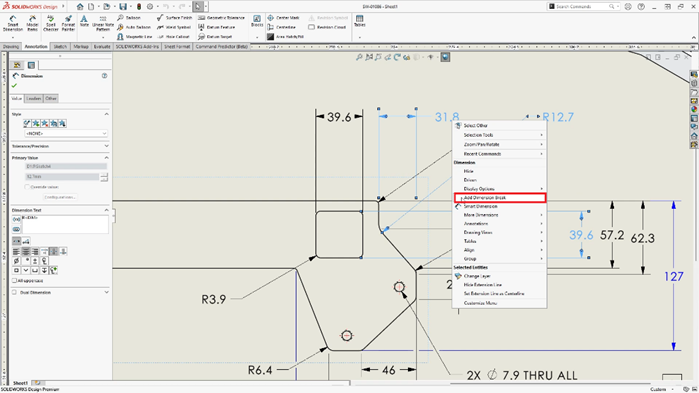
Step 2 : After selection, break dimensions are automatically updated for all dimension lines wherever they overlap.
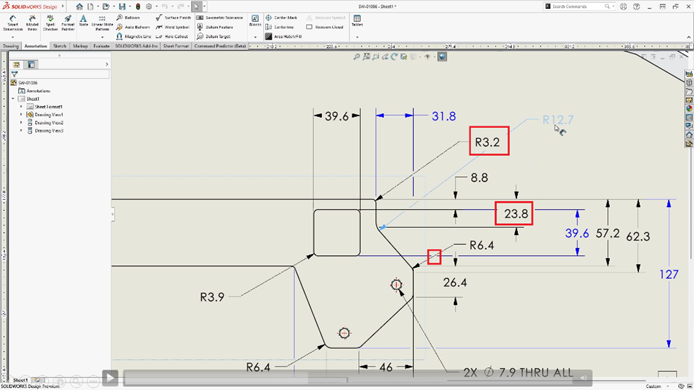
A thoughtful enhancement that lets engineers focus on design, not on fixing overlapping dimensions
Author Details:

Sebin Johns is a Senior Specialist in the Customer Success team with 9 years of experience in engineering software solutions. He joined Conceptia Konnect in October 2020 and brings strong expertise in SOLIDWORKS, and 3DEXPERIENCE Works Solutions. Sebin is known for his customer-focused approach and ability to deliver effective, value-driven solutions.