

SOLIDWORKS File Utilities provides a shortcut option known as Submenu, which helps you find where a file is used in Windows File Explorer if you are not using a data management tool such as SOLIDWORKS PDM.
Installed with SOLIDWORKS by default, these utilities can be accessed by right-clicking a desired SOLIDWORKS file and navigating to the SOLIDWORKS icon on the selection Window. It also offers additional options such as Rename, Replace, and Move – making it easier to manage files without breaking references with parts, assemblies or drawings.
Typically, Submenu includes below options:
- Open
- Pack and Go
- Rename
- Replace
- Move
- File locations
Submenu can be accessed easily by right-clicking on the SOLIDWORKS file in Windows 10. In Windows 11, right-click the SOLIDWORKS file and select ‘Show more options’ to access the Submenu.
Sometimes, the SOLIDWORKS Submenu becomes unavailable after the SOLIDWORKS upgradation if the version gap is significant (exceeding three years), after a Windows upgradation or when multiple versions of SOLIDWORKS installed in the system.
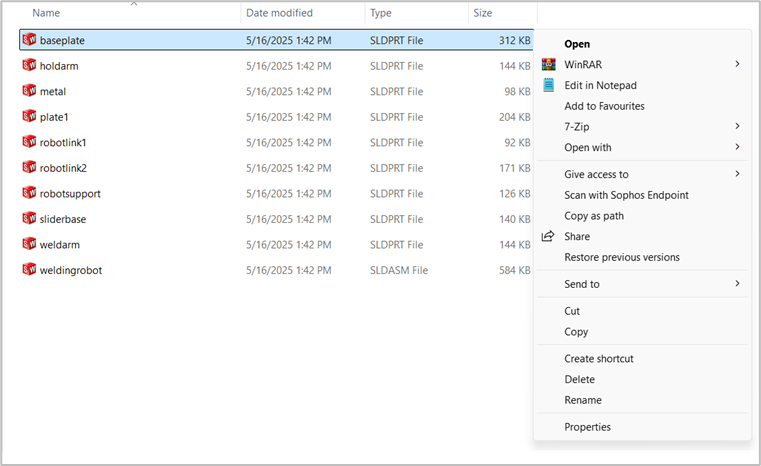
There a few methods you can use to resolve the submenu missing issue as mentioned below.
Method -1: SOLIDWORKS File Utilities
File Utilities is the component that enables the SOLIDWORKS submenu in Windows Explorer for additional file management options outside of the SOLIDWORKS application. If the File Utilities submenu is missing in Windows Explorer (i.e., when right-clicking on SOLIDWORKS files), follow the steps below:
- Launch SOLIDWORKS.
- Navigate to ‘Tools’ on the Menu Bar at the top and select Add-Ins.
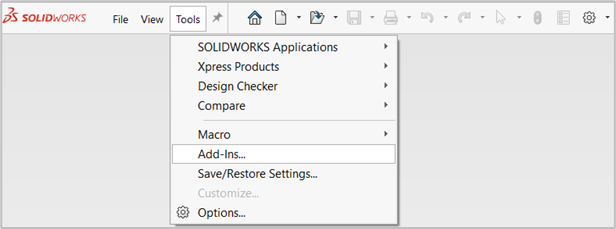
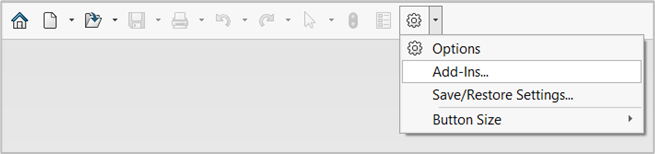
3. You can open Add-ins using the drop down available with the ‘Options’ on the Standard Toolbar.
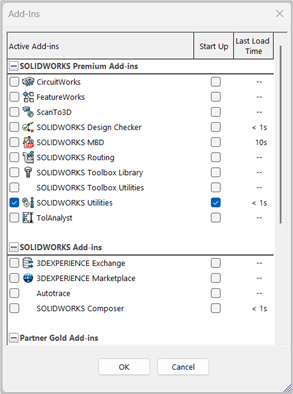
4. Once the Add-Ins dialog box opens, look for SOLIDWORKS Utilities in the list. If you find the add-in, ensure that both checkboxes following SOLIDWORKS Utilities are checked and Click OK to close the dialog.
If the submenu still does not appear after enabling the add-in, try restarting your computer. If the issue persists, you need to modify your SOLIDWORKS installation to ensure that the ‘SOLIDWORKS file utilities’ component is included.
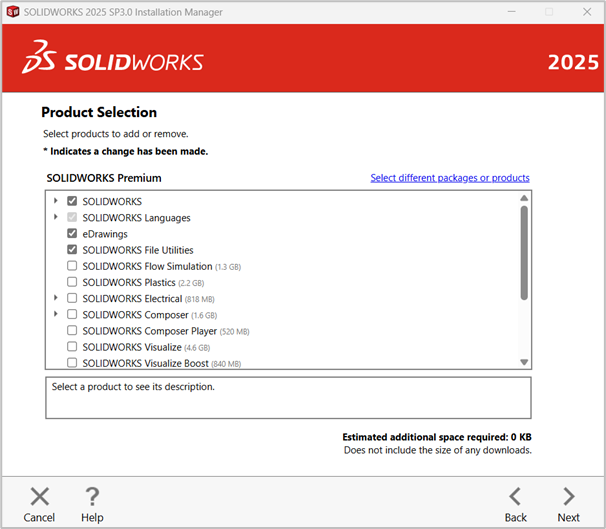
Method -2: SOLIDWORKS Shell File Launcher
As a next step in resolving the Submenu issue, verify and ensure that all types of SOLIDWORKS files (Part, Assembly & Drawing) are opened with Shell File Launcher. To do so,
- Right-click on a SOLIDWORKS file, e.g., a .sldprt file and Select “Open with” > “Choose another app”.

2. In the pop-up window:
- Scroll down to expand the full list.
- At the bottom, click on “Choose an app on your PC”.
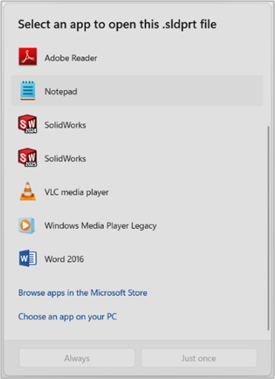
3. In the File Explorer window opened, Navigate to the following folder to:
- C:\Program Files\SOLIDWORKS Corp XXXX\SOLIDWORKS\ – for the SOLIDWORKS versions 2023 or below.
- C:\Program Files\Common Files\SOLIDWORKS Shared\ – for the SOLIDWORKS versions 2024 and above.
4. Select the file ‘swShellFileLauncher.exe’. Then click Open and OK to confirm your selection.
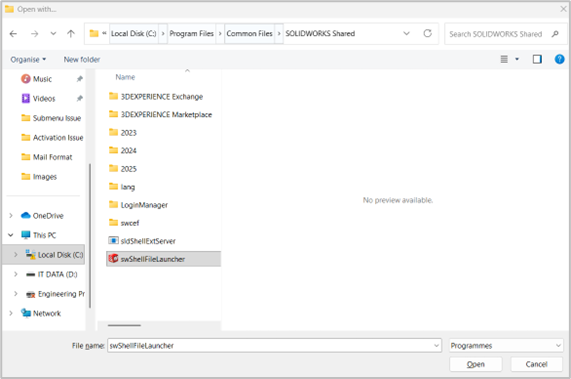
5. Repeat the same process for Assembly (.sldasm) and Drawing (.slddrw) files.
Method -3: Re-registering the File Extensions
If the registry keys are corrupted, missing or incorrectly configured, the SOLIDWORKS submenu may not appear. Editing or repairing the registry can help re-register, ensuring that Windows correctly displays the SOLIDWORKS submenu.
Open the Registry Editor by launching it as an Administrator from the Windows Start menu. Then, navigate to the path specified below. Locate the registry keys associated with SOLIDWORKS file types and either rename or delete them.
- HKEY_CURRENT_USER\Software\Microsoft\Windows\CurrentVersion\Explorer\FileExts\.sldasm
- HKEY_CURRENT_USER\Software\Microsoft\Windows\CurrentVersion\Explorer\FileExts\.sldprt
- HKEY_CURRENT_USER\Software\Microsoft\Windows\CurrentVersion\Explorer\FileExts\.slddrw
- HKEY_CLASSES_ROOT\SldPart.Document
- HKEY_CLASSES_ROOT\SldAssem.Document
- HKEY_CLASSES_ROOT\SldDraw.Document
- HKEY_CLASSES_ROOT\.sldprt
- HKEY_CLASSES_ROOT\.sldasm
- HKEY_CLASSES_ROOT\.slddrw
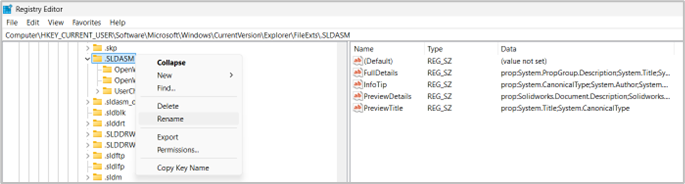
Open Command Prompt in the Administrator mode and run below commands to register .dll files.
- regsvr32 “C: \ Program Files \ Common Files \ SOLIDWORKS Shared \ swdocumentmgr.dll”
- regsvr32 “C: \ Program Files \ Common Files \ SOLIDWORKS Shared \ sldwinshellextu.dll”
- regsvr32 “C: \ Program Files \ Common Files \ SOLIDWORKS Shared \ sldwinshellextu.dll /u”
- regsvr32 “C: \ Program Files \ SOLIDWORKS Corp 2023 \ SOLIDWORKS \s ldthumbnailprovider.dll”
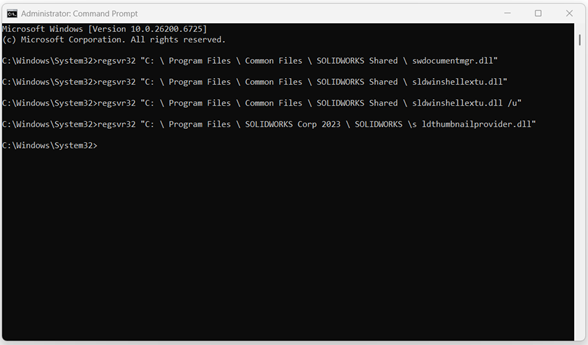
Repair the SOLIDWORKS installation and restart the system to update the changes performed.
Method -4: Incomplete or Corrupted Installation
An incomplete installation of SOLIDWORKS or software corruption – potentially caused by the background processes or system restrictions may result in the disappearance of the SOLIDWORKS submenu.
In such cases, we recommend you to perform a clean uninstallation of SOLIDWORKS. This involves removing all associated files and folders, program directories, registry entries, and Visual C++ redistributables related to SOLIDWORKS.
After completing the uninstallation, restart the system to apply the changes. Then, proceed with a fresh installation of SOLIDWORKS using a clean setup file.
Method -5: Windows Conflicts
A Windows update or upgrade can disrupt SOLIDWORKS Shell File integration with Windows File Explorer, causing the submenu to disappear.
To identify and resolve potential Windows system corruption, run the System File Checker by opening Command Prompt in Elevated Mode (Run as Administrator) and executing the following command: sfc /scannow
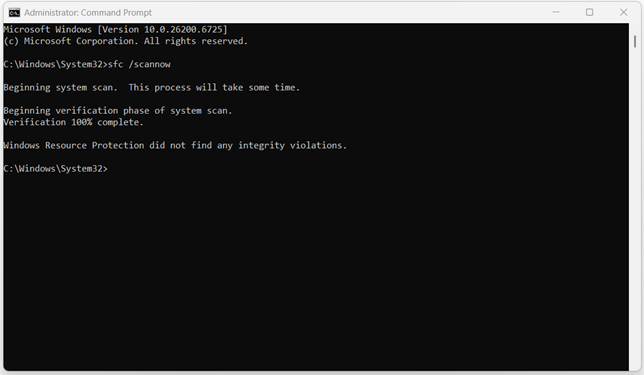
If the issue does not resolved yet, verify further and determine whether it is specific to the current Windows user profile by logging in as an Administrator.
- If the issue does not occur in the Administrator Login, consider deleting the existing user profile and creating a new user account with sufficient permissions to run SOLIDWORKS.
- If the issue does occur even when logged in as Administrator, a system format or OS (Operating System) reinstallation may be necessary.
The methods outlined above should effectively resolve the issue. However, if the problem persists, please do not hesitate to contact us for further assistance.
You can contact us by mail at support@ckonnect.in or toll-free number 1800-425-8959.
We hope that this blog article has helped you better understand why SOLIDWORKS submenus sometimes vanish and, more importantly, how to restore them.
Get in Touch
Are you looking to upgrade your design capabilities or expand your team’s toolkit? We are here to help you find the perfect solution for your engineering needs.
For Sales Enquiries or New Purchase call at: +919590506408
Mail us at: marketing@ckonnect.in
Keep Learning
Don’t let your SOLIDWORKS learning journey stop here! Stay ahead of the curve by exploring the SOLIDWORKS latest tips, tricks, and industry insights.