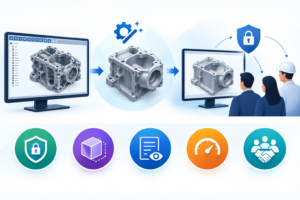


In the mechanical product development establishments, apart from designing the 3D CAD models developed during the design process, the marketing of the products is equally important. In this direction, CAD models of the products developed need to be transformed to provide an aesthetic appearance along with a photorealistic feel for marketing the products. SOLIDWORKS Visualize is one such application which can help organizations to successfully market their products. This is done by adding the required type of appearances to the 3D CAD models while adjusting the settings for HDR lighting, Scenes, Cameras and the addition of decals. All the settings can be well synchronized to create a high-quality image in the process called Rendering. If required, the motion studies available with the SOLIDWORKS CAD model can also be exported to SOLDIWORKS Visualize.
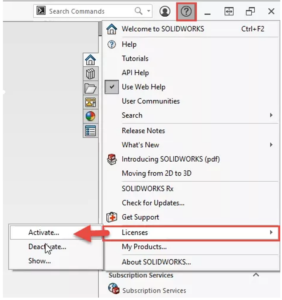
When exporting the CAD models from SOLIDWORKS CAD into SOLIDWORKS Visualize for Rendering, we have the three export options that can be well utilized. The options are Export Simple, Export Advanced and Save advanced available in SOLIDWORKS Visualize Add-in in the Standard, Professional and Premium versions of Desktop SOLIDWORKS and are as shown below.
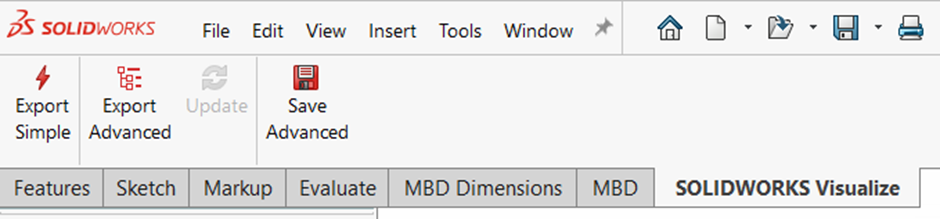
Export Simple: This export option is used when exporting the SOLIDWORKS CAD Geometry along with the Appearances, Decals, HDR Lighting, cameras and Scenes into SOLIDWORKS Visualize (Standard or Professional). Clicking on the Export Simple option instantly triggers the opening of the CAD model in SOLIDWORKS Visualize in the appearances grouping mode. However, the motion studies of the CAD model will not be exported.
Export Advanced: This export option is similar to the Export Simple, where the user can export the SOLIDWORKS CAD Geometry along with the Appearances, Decals, HDR Lighting, Cameras and Scenes and the motion studies into SOLIDWORKS Visualize (Standard or Professional). The CAD model will be opened instantly in SOLIDWORKS Visualize using the automatic part grouping mode with the monitor file option automatically getting activated.
Save Advanced: This export option lets the user save the SOLIDWORKS CAD Geometry file along with the Appearances, Decals, HDR Lighting, Cameras, Scenes and motion studies. This option is like the Export Advanced. However, the CAD file is not opened instantly in SOLIDWORKS Visualize, rather, it facilitates the user to save the CAD file first, which can be opened at a later point in time. Also, while opening the file, the user can still choose the required entity to be imported, such as animations, cameras, decals and scenes, along with the CAD Geometry.
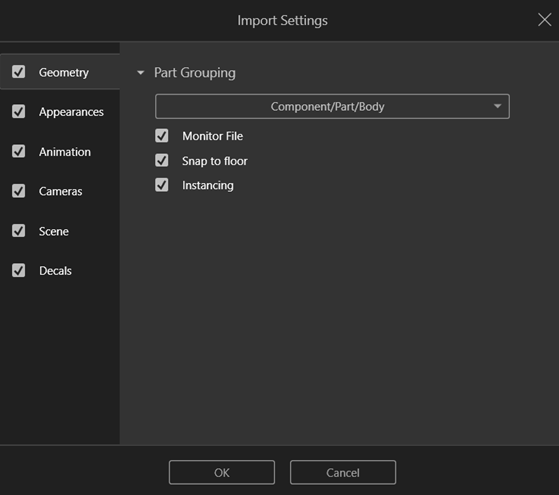
Update: The update option allows exporting of the latest version of the active model into SOLIDWORKS Visualize. However, this option becomes active only when the export advanced option has been used at least once earlier for exporting the CAD model.
Conclusion: With the various export options available in SOLIDWORKS Visualize Add-in, the user has the flexibility of selecting the required option for exporting the CAD Model. If CAD Geometry must be exported only with the appearances, decals, cameras and, scenes the user can select the ‘Export Simple’. If animations are also to be included in the export, then ‘Export Advanced’ will be suitable. If the user decides to open the Exported file in SOLIDWORKS Visualize later, then the ‘Save Advanced’ option should be selected. However, selecting the best suitable option for any type of export should be decided by the user, considering the requirements.