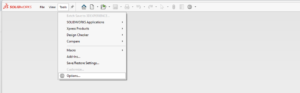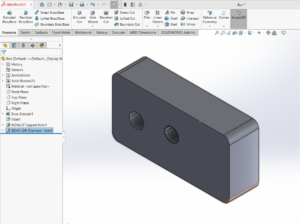


‘Cavity’ in SOLIDWORKS is an essential feature for creating a virtual molded part, starting from the core and cavity inserts in the injection mold. The virtual molded part thus created can be used to know the shape and/or mass of the molded component before it is manufactured. In SOLIDWORKS, the Cavity feature cannot be accessed directly in the assembly modeling but is accessible when a component is edited in the context of the assembly, as shown below.
Insert —> Features —> Cavity
Here, we have an example of an assembly which consists of the Core and Cavity inserts of a Camera body as shown below. It is required to create a virtual molded part (Camera body) from the Core and Cavity inserts as starting entities. In the Closed condition of the Mold, the Core and Cavity halves are assembled as shown below.
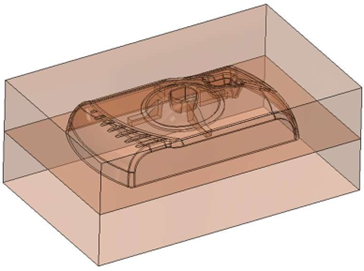
In the exploded condition, the Core and Cavity halves are separated for clarity.

To create a virtual molded part, i.e., the Camera body component, we first need to create a virtual part using the insert part command. This command can be accessed as shown. Insert Components – New part.
The part must be added in such a way that it completely encloses the core and cavity impressions in the core and cavity

After the part has been added, it must be edited using the edit part option. Being in the features modeling mode, we can now access the ‘Cavity’ feature.
Insert —> Features —> Cavity.
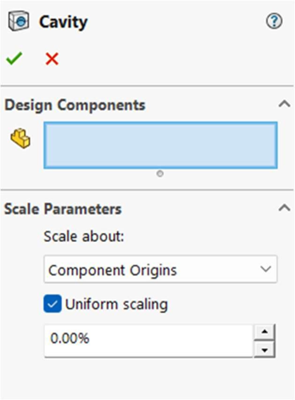
In the design components field, select all the components, optionally set the scale about point and the scale factor, and say ‘OK’. The cavity tool will now create an element of thickness equal to the gap between the core and cavity. The Component can be opened in a separate window to view it, as shown below.
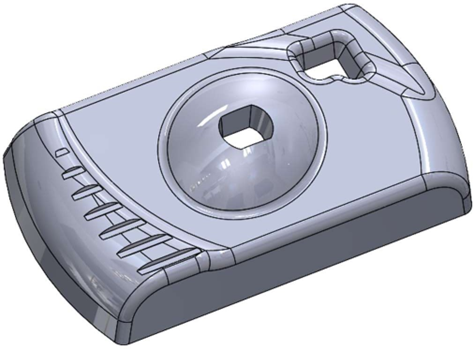
In this way, we can easily create a Virtual Component from Core and Cavity inserts in the context of an Assembly using the ‘Cavity’ Feature. Since the reference is maintained with the core and cavity halves, any changes in the core and cavity will be reflected in the Component as well
Pradeep G V is a Product Specialist in SOLIDWORKS and allied solutions at Conceptia Software Technologies, Bangalore. A key member of the technical support team for the past three years, Pradeep brings over a decade of experience spanning both academia and industry. His deep expertise and practical insights make him a valuable resource for customers and engineering professionals alike.