

SOLIDWORKS Simulation offers powerful Multiphysics capabilities, allowing users to seamlessly integrate results from one type of analysis into another. One of the key features is the ability to transfer thermal analysis results directly into static structural studies, enabling engineers to understand how thermal loads influence mechanical behavior. This functionality is especially critical when designing products exposed to temperature variations, such as in the aerospace, automotive, and industrial equipment industries. By combining thermal and structural simulations, engineers can predict real-world performance more accurately and design components that can withstand both mechanical forces and temperature-induced stresses.
In this blog, we will discuss the process of integrating Static analysis with thermal analysis loads in SOLIDWORKS Simulation, ensuring you understand how to include both Mechanical and Thermal loads in a thorough analysis.
Step1: Prepare your Model:
Before starting Thermal Analysis, ensure your model is fully defined in SOLIDWORKS. Make sure you have defined all Material properties and that all parts are present. SOLIDWORKS uses both Mechanical and Thermal properties to predict how the material will respond to changes in temperature.
• Mechanical Properties: These include Yield Strength, Poisson’s Ratio, and Young’s Modulus.
• Thermal Properties: These include the coefficient of thermal expansion, specific heat, and thermal conductivity.
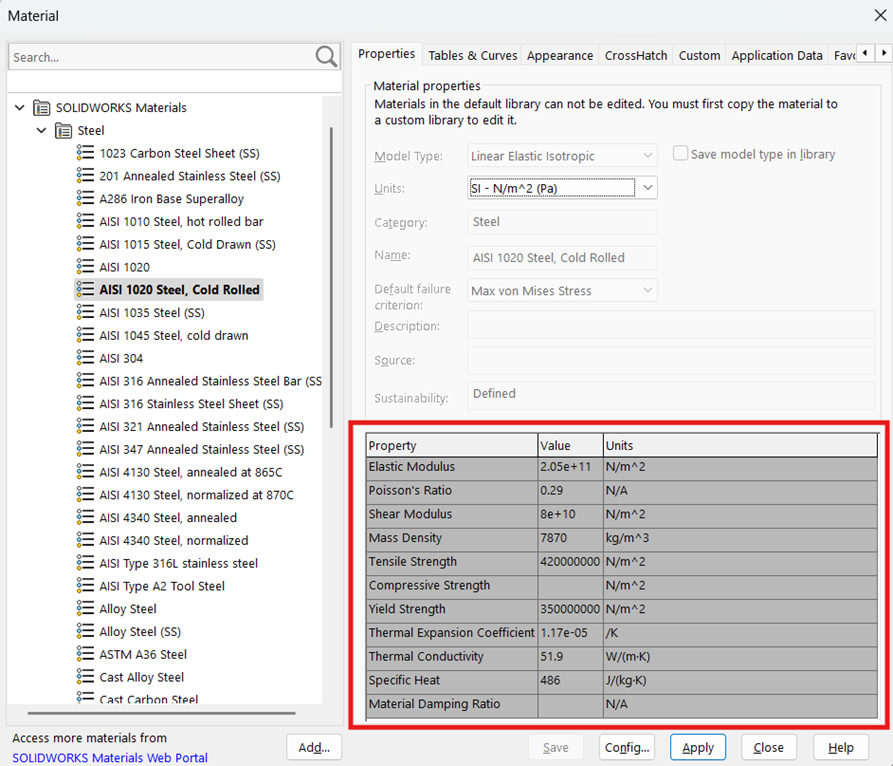
Fig1: SOLIDWORKS Material Library & Properties List
Step 2: Set up Thermal Study:
To perform static analysis with thermal loads, you first need to create a Thermal study to simulate thermal conditions.
After setting the thermal loads, run the thermal analysis. SOLIDWORKS will compute the temperature distribution across the model.
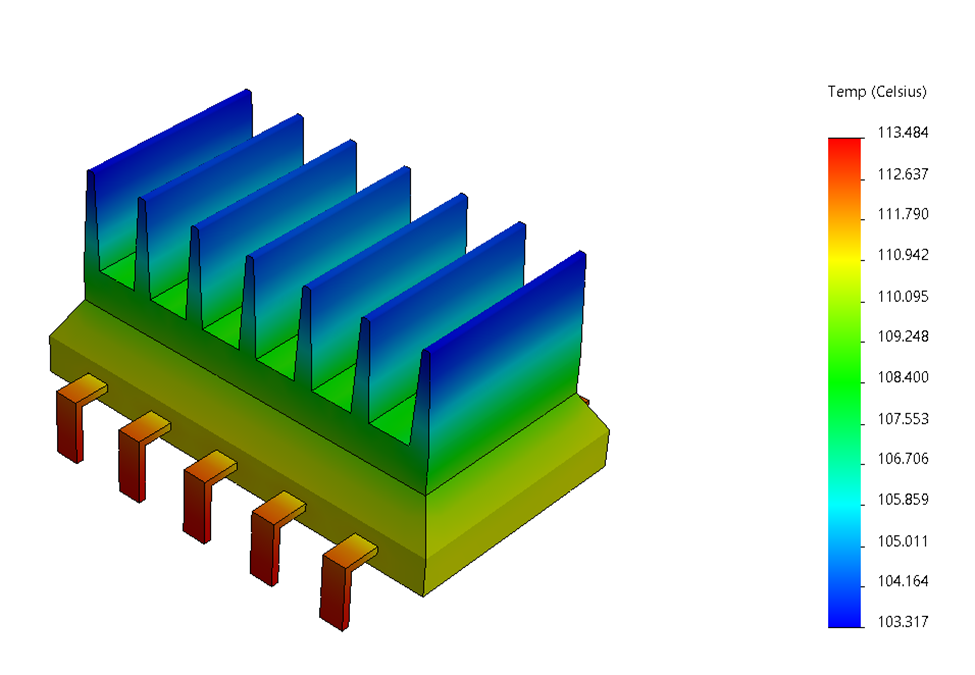
Fig2: Thermal Analysis Results
Step 3: Set up Static Study & Link Thermal study results:
A static study simulates how your part will deform under mechanical loads such as forces, pressures, and constraints. Here, we will consider the effects of the temperature distribution from the Thermal study.
We have the results from the Thermal analysis (the temperature distribution across the model), and we can proceed with the static analysis.
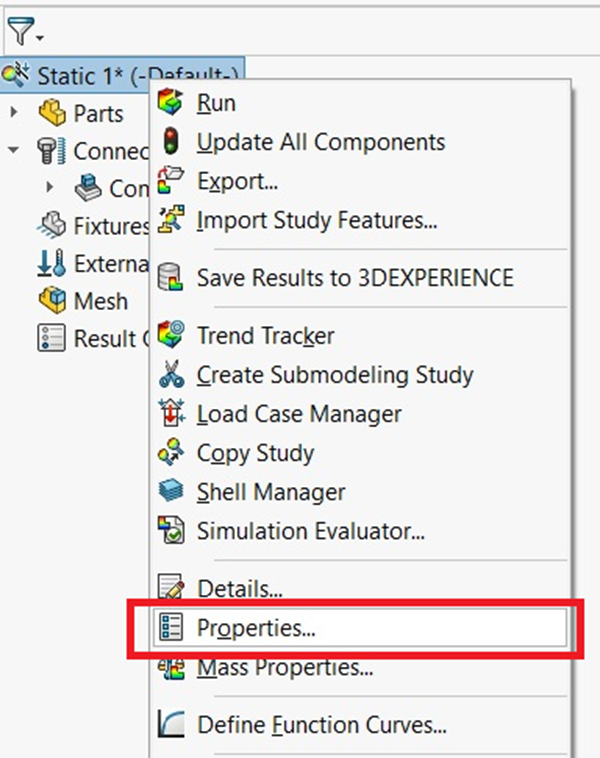
Fig3: Choosing the Properties option from the Static Setup tree
In the Static Setup tree, right-click on the setup name and use “Properties”. In the “Flow/Thermal Effect” tab, choose “Temperatures from thermal study “from “Thermal Options”. You have the option of selecting which thermal study to import.
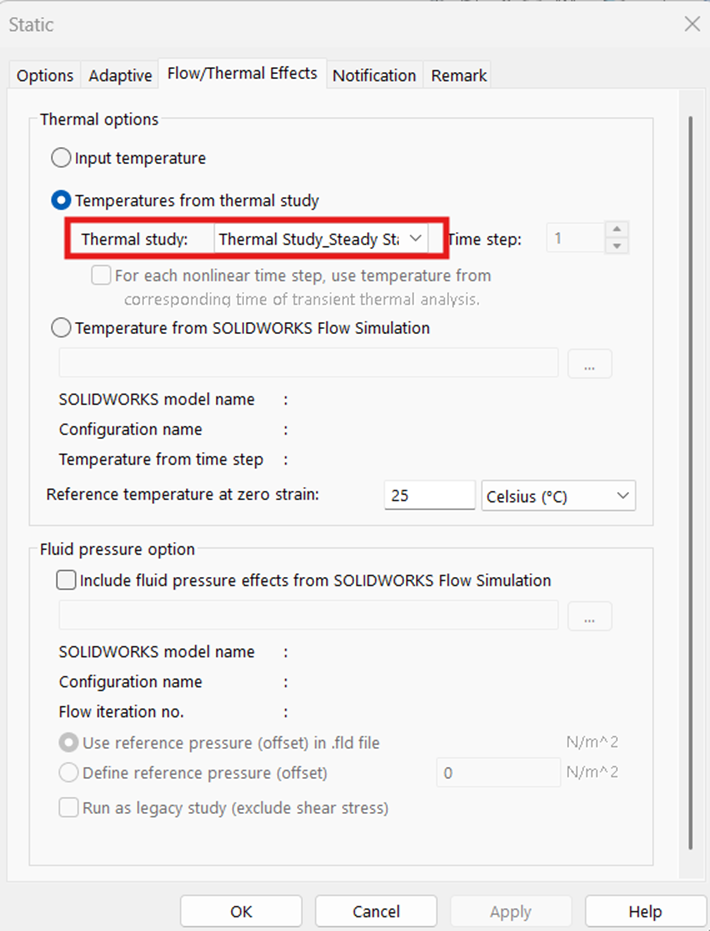
Fig4: Importing Static Steady Step results into Static Setup
When importing results from a Transient Analysis, you also have the option to select results based on the specific time increments you are interested in. This allows for a more detailed review of how the system behaves over time at various points during the analysis.
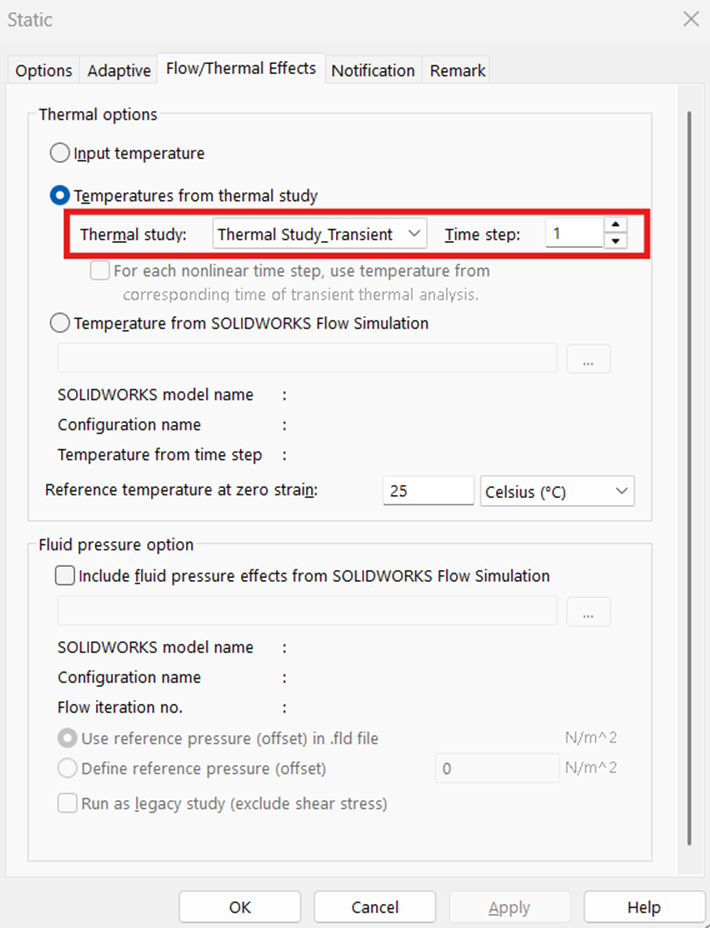
Fig4: Importing Transient state results into Static setup with Time Increment Selection
The temperature input in the “External load” field applied is automatically in our Static Simulation setup tree.
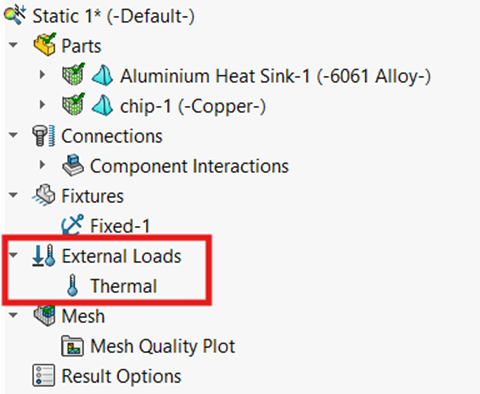
Fig5: External Load Condition Field in Static Setup
After running the Static analysis, SOLIDWORKS will provide results that show how your part responds to the mechanical loads and temperature variations.
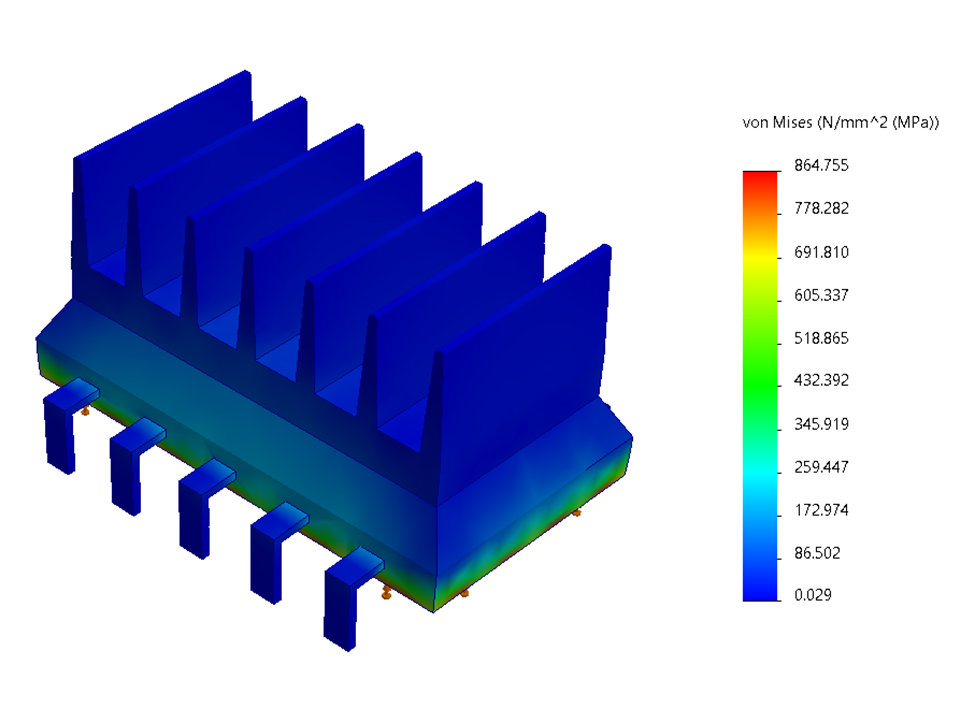
Fig6: Static Analysis Results with Thermal Analysis Load
By leveraging SOLIDWORKS integrated simulation capabilities, you can enhance your workflow, reduce costly physical prototyping, and arrive at a more robust final product.
Note: Thermal Analysis is only available in SOLIDWORKS Simulation Professional and Premium Packages Only.
Take your product design to the next level with SOLIDWORKS Simulation, combining thermal and structural analysis in one seamless workflow. If you’d like to explore SOLIDWORKS Simulation Professional or Premium for your projects, feel free to request a quote and our team will be glad to assist you.