

Working on custom drawing templates for drawing document creations in SOLIDWORKS is very common task and may also include the addition of new sheets into the drawing document.
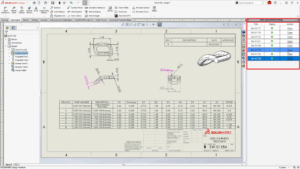
While working with SOLIDWORKS default drawing template, addition of new sheets in the drawing will have the same standard format automatically loaded into all the new sheets added. But, when, a custom drawing template containing customized border and title block is being used, inserting a new sheet will give us a warning message saying, “The sheet format could not be located”. This is because SOLIDWORKS cannot locate the sheet format for the custom drawing template. To demonstrate this, I have a custom drawing template as shown below.
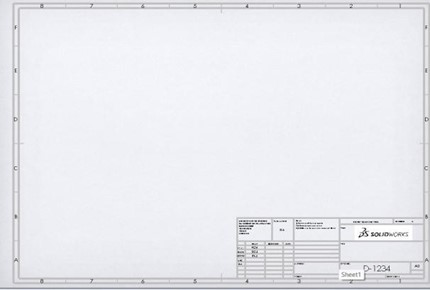
When a new sheet is inserted into the drawing, the warning message pops up:
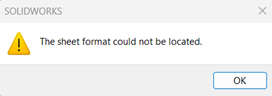
This warning message means that SOLIDWORKS cannot fetch the required Sheet format as the template is changed from Standard to Custom. To resolve this issue, the following workaround can be used. Before proceeding to the next step, the sheet format of the template needs to be first saved into the default sheet format folder by clicking file – Save Sheet Format.
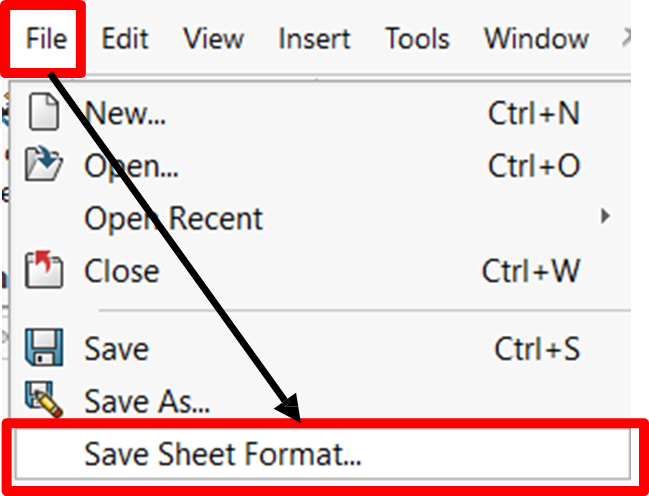
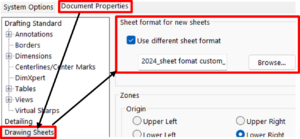
After saving the sheet format, we need to now set the sheet format path manually in the document properties. To set the sheet format manually, click on Options à Document Properties à Drawing sheet
In the Sheet format for new sheets field, enable the “Use different sheet format” and browse for the custom template sheet format from the required folder.
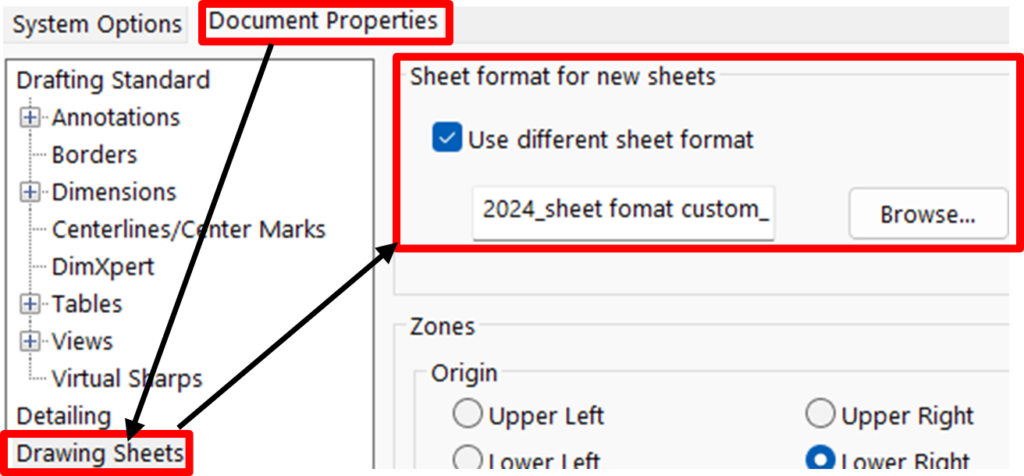
After setting the custom sheet format for the new sheets, check by adding the new sheets 2, 3, 4 etc. to the drawing document. Now, we see that the custom sheet format is now displayed for the sheets. To save this setting of sheet format, again save the drawing template with a new name.
Conclusion
In this blog, the method of resolving the issue of “missing sheet format “particularly when new sheets are added to the drawing document while using a custom drawing template is addressed. The first step in resolving this issue is to save the custom template as a new sheet format in the default sheet format folder. The next step is to map the new sheet format to the template. Finally, we need to save the drawing template with a new name.
By following the above steps, the user can save their valuable design time which otherwise would have been unnecessarily wasted in browsing and fetching the custom sheet format whenever the custom template is used.