


Most of the SOLIDWORKS users may have this problem if their computer doesn’t have enough memory or if too many programs are open at the same time.
To fix the problem, you can try the two options below.
- Virtual Memory Setting
- Registry modification
The Resource Monitor warning message appears because your Windows operating system has reached the limit for GDI objects.
By default, each program is allowed to use up to 10,000 GDI objects, but Windows can support a maximum of 16,384.
If you increase this limit, it gives each application more space to work with, which can help prevent issues. We will always suggest users to upgrade the custom size in the Virtual Memory first, instead of modifying the registry settings.
If this is resolved, no modification of the registry settings is required. If this does not fix the issue, you may need to change the registry settings.
NOTE: There is no guarantee that problems caused by modifying the registry can be fixed easily.
Changing the Windows registry comes with risks and may lead to system errors.
In some cases, you may need to reinstall the Windows operating system to recover from these issues.
Method 1: The Virtual Memory Settings
The maximum virtual memory is usually set to twice the amount of installed physical RAM.
By default, Windows manages this setting automatically, and it typically sets the virtual memory size to about 1.5 times your physical RAM.
You can check or change these settings by following these steps:
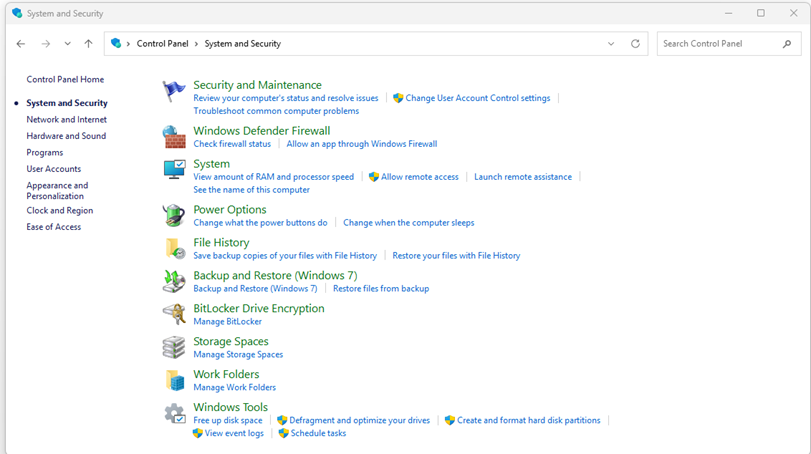
1. Go to Control Panel> System > Advanced System Settings
2. Advanced (Tab) > Settings
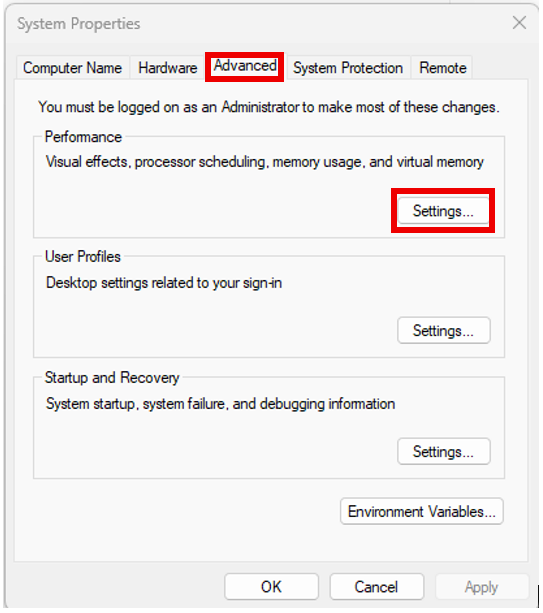
3. Advanced > Change

4. Uncheck the box that says, “Automatically manage paging file size for all drives.”
Then, select the drive where you want to set the virtual memory.
5. Under “Custom size,” enter a value that is twice the amount of physical RAM installed on your PC.

6. For “Initial size,” enter a value that is twice the amount of physical RAM installed on your system.
For example;
If you have 16 GB of RAM, enter 32000 MB for initial size and 3400 MB for Maximum size.
7. Click on ‘Set’ and ‘OK’.
8. Restart your workstation.
Method 2: The Registry Settings
1. Open Registry Editor in Elevated Mode
- Press Windows Key + R, type regedit, then press Ctrl + Shift + Enter to run it as administrator.
2. Navigate to the following registry path:
HKEY_LOCAL_MACHINE\SOFTWARE\Microsoft\WindowsNT\CurrentVersion\Windows

3. Modify the following values:
- Locate the values named:
- GDIProcessHandleQuota
- USERProcessHandlQuota
- If they do not exist, right-click on the right pane, choose New > DWORD (32-bit) Value, and name them accordingly.
- Double-click each value, set the Base to Decimal, then enter:
- GDIProcessHandle Quota: 65536
- USERProcessHandle Quota: 18000
4. Repeat the same changes in the 32-bit Registry path (for 64-bit systems):
HKEY_LOCAL_MACHINE\SOFTWARE\Wow6432Node\Microsoft\Windows NT\CurrentVersion\Windows
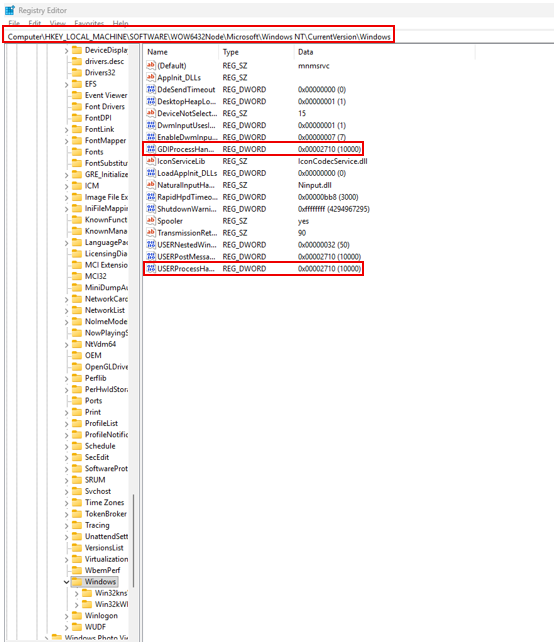
- Apply the same changes for GDI Process Handle Quota and USERProcessHandleQuota as described above.
5. Restart your computer
- Changes will take effect after the system restarts.
By diligently applying these advanced troubleshooting techniques, you can eliminate the Resource Monitor warning and restore optimal performance to your SOLIDWORKS environment.
For more detailed guidance or for more such SOLIDWORKS Tips, please feel free to mail us at marketing@ckonnect.in.

Author Details:
Author Name: Vedamba C P
Ms. Vedamba is working as Online Support Associate at Conceptia Konnect. Her background includes a Bachelor’s degree in Aeronautical Engineering and extensive experience in SOLIDWORKS customer support. This unique blend of technical expertise and hands-on customer service allows her to provide practical insights and reliable guidance in her blog posts.