

In today’s product development, visual quality is key. Realistic rendering can help the teams communicate intents clearly and effectively, be it in early design reviews or in final marketing assets. With the release of SOLIDWORKS 2026, rendering workflows will be getting a huge facelift that makes producing high-quality, photorealistic visuals right from your CAD models even easier.
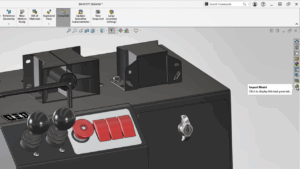
These enhancements consist of tighter integration with SOLIDWORKS Visualize, the introduction of DSPBR appearances, and the ability to render directly from SOLIDWORKS.

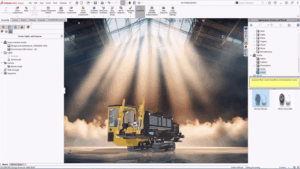
Rendering in SOLIDWORKS Visualize
“SOLIDWORKS Visualize has long been the industry-standard tool for rendering high-quality, photorealistic images and animations of your products.” It helps designers and marketers to:
• Engage in the production of photo-real.
• Visualize products prior to production.
• Development of interesting visuals for marketing, sales, and customer presentation purposes.
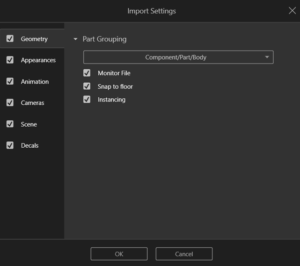
With the advent of SOLIDWORKS 2026, the interoperability between SOLIDWORKS and Visualize has improved, providing a smooth transition between design and visualization.

DSPBR Appearances for SOLIDWORKS 2026
One of the most important changes brought about in SOLIDWORKS 2026 is the addition of support for appearances in DSPBR.
What Is DSPBR? DSP
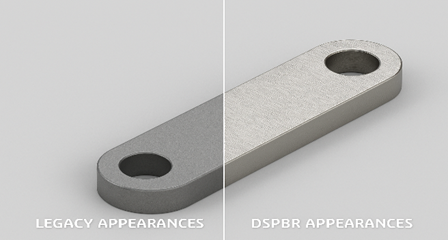
DSPBR or (Dassault Systèmes Physically Based Rendering) is a recent advancement in rendering technology that models light behavior as it occurs in reality. The end effect is materials that react better to lighting, producing much more realistic images.
What’s New with Appearances?
- The entire appearance library has been transformed
- Materials support normal maps to provide enhanced detail of the material’s surface
- Better interaction with lighting to provide accurate reflections and shading
- Drag-and-drop ease to continue with materials
After being applied, the appearance of DSPBR shows a marked realistic improvement over the previous ones.
Appearance Customization Improvements
DSPBR appearances are much more realistic and, to some degree, customizable. The user may customize material appearance by the use of extra texture maps.
Some of the essential personalization tools include
• Roughness corresponds to the control surface gloss or matte finish
• Normal maps for texture on surfaces without additional geometry
• Adjusted reflectivity of metals and plastics
With such control, designers are able to generate images that are very similar to produced articles.

Directly Render from SOLIDWORKS
Rendering directly inside SOLIDWORKS is considered one of the significant productivity enhancements in SOLIDWORKS 2026.
With DSPBR compatibility in SOLIDWORKS Visualize:
• Appearances transfers seamlessly between SOLIDWORKS and Visualize
• No need to re-assign materials after export
• Faster workflow from design to final render
One Click Rendering
“The process of rendering is now easier than ever:”
1. Apply DSPBR appearances to your model
2. Select a scene
3.Enable Visualize add-in
4. Click Render
You can create realistic images with a one-click functionality in your design environment.
1. Apply DSPBR appearances to your model
DSPBR appearances are supported by SOLIDWORKS 2026, ensuring a smooth transition when designs are imported to SOLIDWORKS Visualize for the generation of high-quality photorealistic images.
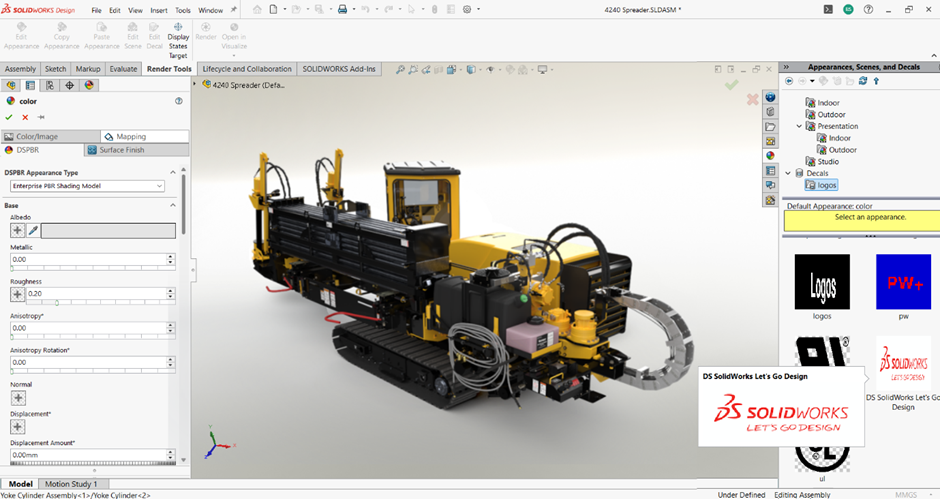
Within the Property Manager for Appearances, there is a DSPBR tab for direct material-to-material translation. All parameters from SOLIDWORKS are directly translatable to Visualize. To use the tab, select DSPBR (Dassault Systèmes Physically Based Rendering) under Appearance Visual Style in Tools > Options > System Options > Display.

2. Select a scene (environment, lighting, background)
- Apply a scene from the Task Pane: Task Pane > Appearances, Scenes, and Decals > Scenes > drag a studio/neutral HDR onto the graphics area.
- Refine lighting/background: Scene settings: right-click in the graphics area > Edit Scene (or View > Display > Scene) to adjust HDR brightness, rotation, floor reflections, and background style.
3.Enable the visualize add-in
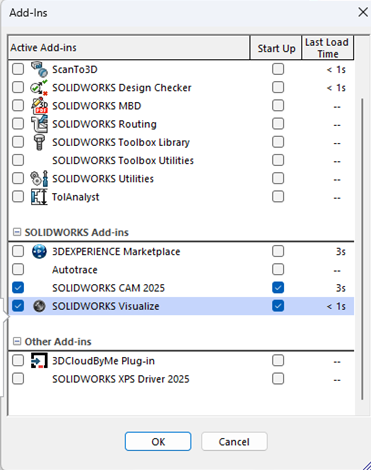
- Enable Visualize in SOLIDWORKS:
Tools > Add-Ins > check “SOLIDWORKS Visualize” under Active Add-Ins
4.Click render
- Render from the graphics area: Click Render in the heads-up toolbar (or File > Render, depending on your UI layout) to process the image using Visualize inside SOLIDWORKS.
- Choose output settings: In the Render dialog: set resolution, quality (draft/accurate), image format (PNG/JPG), and output folder.

Validate materials and lighting: Preview before final render to confirm DSPBR appearance response and scene highlights.
Best Practices for Rendering in SOLIDWORKS 2026
- Use DSPBR appearances as much as possible in order to add realism.
- Roughness values are related to material examples.
- Use built-in scenes to provide consistent lighting.
- Validate renders in Visualize for final marketing output
Conclusion
SOLIDWORKS 2026 brings a major leap forward in rendering capabilities. With DSPBR appearances, an updated material library, and direct rendering from SOLIDWORKS, users can create stunning, photorealistic visuals faster and more efficiently than ever before.