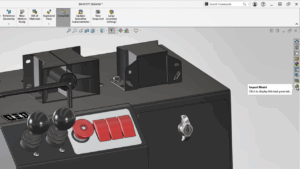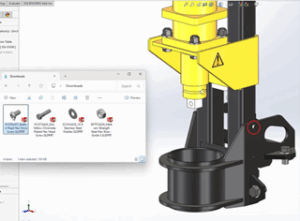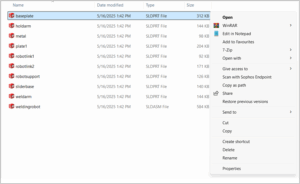


When importing neutral CAD files like STEP, IGES, or Parasolid into SOLIDWORKS, the best options depend on your goal. For most users, using 3D Interconnect is recommended, as it allows direct import without conversion and maintains links to the original file for future updates.
Using 3D Interconnect in SOLIDWORKS is ideal for direct import of neutral CAD files without conversion, as it maintains associative links for updates and is ideal for modern workflows and large assemblies.
1. Workflow when Enable 3D Interconnect is checked:
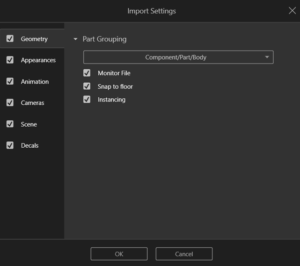
While importing the neutral files, select the “Options”, a window with Import options will appear. Check the Enable 3D Interconnect option. You can also set the import options before importing the file as Options > System options > Import.
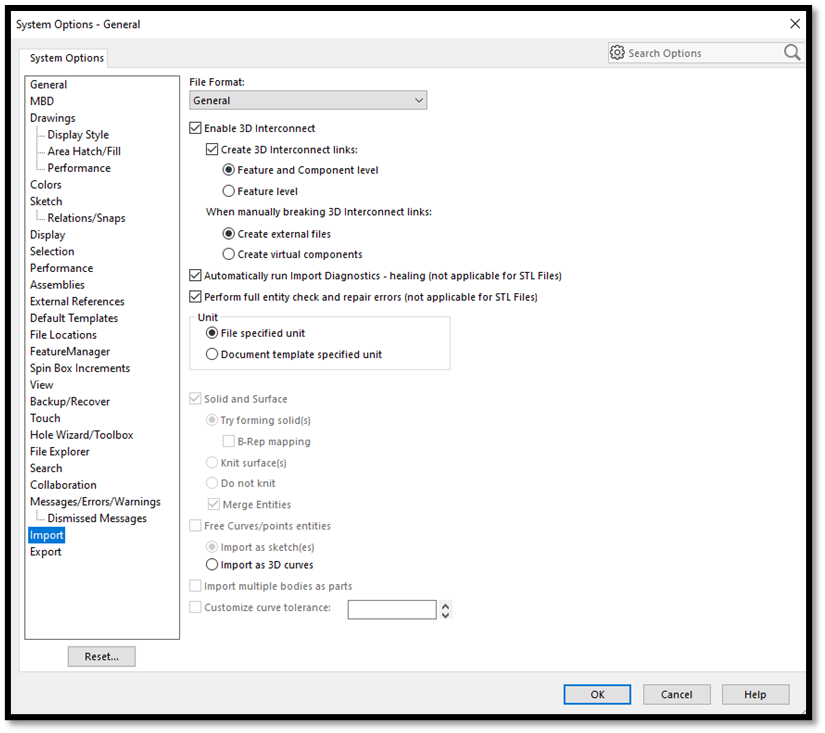
The above process results in the neutral file opening faster due to the SOLIDWORKS links to the file instead of fully converting it to the native SOLIDWORKS format.
For External reference management, you can choose to keep the external links, allowing the SOLIDWORKS model to update automatically if the source file changes, or break the link to convert the model into a fully editable SOLIDWORKS file without future updates.
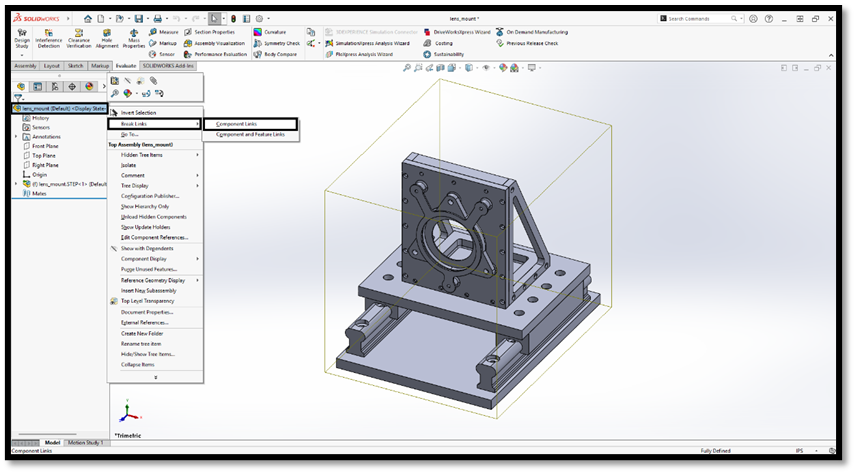
When importing assemblies, it is recommended to create external files for better performance, though you can also opt to create virtual components, which remain embedded within the assembly.
2. Workflow when Enable 3D Interconnect is unchecked:
When 3D Interconnect is disabled, SOLIDWORKS does not maintain a live link to the original CAD file. Instead, it fully converts imported files (e.g., STEP, IGES, ACIS) into native SOLIDWORKS geometry. This allows for direct editing and full feature access, but also means that changes in the source file will not automatically update the model in SOLIDWORKS.
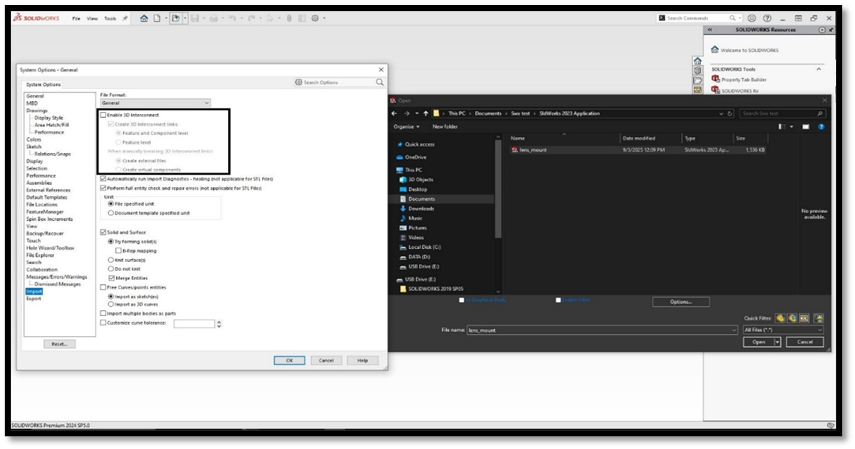
In this mode, users must manually configure import options to ensure accurate geometry, solid modeling, and correct unit scaling. It is beneficial when you need complete control over the imported geometry or plan to modify the part extensively.
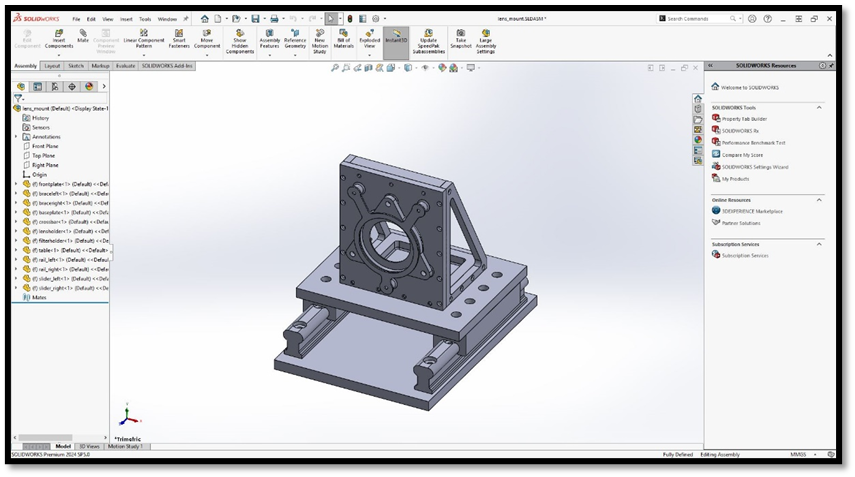
Recognizing features in neutral files in SolidWorks is crucial to transform imported, static geometry into a fully editable, parametric model, enabling users to modify dimensions, adjust feature definitions, and rebuild the model’s history rather than just performing direct editing. Below is the process to recognize the features in SOLIDWORKS.
- Enable the add-in ‘FeatureWorks’ in SOLIDWORKS.
- When a file is imported into SOLIDWORKS, use ‘FeatureWorks’ to recognize the features.
- Select the Automatic or Interactive method suitable for the nature of the file.
- Prefer the Automatic Feature Recognition Mode as SOLIDWORKS recognizes the features automatically and enables the editing option from the FeatureManager tree.
- Use Interactive Feature Recognition Mode when you need to recognize complex geometries with respect to a specific type of feature.
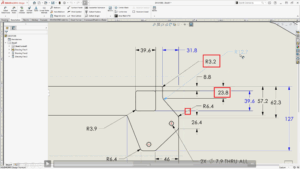
The imported geometry can consist of geometric irregularities such as gaps between faces, overlapping faces, or incorrect trim boundaries. Therefore, we use Import Diagnosis to automatically detect and attempt to heal flaws in imported geometry.
SOLIDWORKS Import Diagnostics can be accessed via Tools > Evaluate. When importing geometry, the tool can detect issues such as gaps or faulty faces. If such errors are identified, you can use Attempt to Heal All, or context-specific options like Attempt to Heal All Faces or Attempt to Heal All Gaps, to resolve them automatically.
If Attempt to Heal All does not fully resolve the issues, manual intervention may be required. This can involve editing geometry using surface modeling tools, for example, by deleting and recreating problematic faces or using patching techniques.
Note: SOLIDWORKS cannot recognize certain features, especially if they are complex or poorly defined in the STEP file. In such cases, ‘FeatureWorks’ fails to realize due to overlapping solids and gaps present in the model.
The success of feature recognition and fault repair in imported files within SOLIDWORKS heavily depends on:
- The method used to export the file, and
- The level of data fidelity and access included during that export process.
Kindly request your vendors to include essential data – such as face and edge properties, periodic faces, 3D curve entities, and appearance information – based on your specific requirements when exporting models to a neutral file format (e.g., STEP or IGES). Including this data can significantly improve the accuracy of imported models and enhance feature recognition within SOLIDWORKS.
For any new SOLIDWORKS License purchase or to explore more advanced tips for optimizing your design process, please don’t hesitate to contact us directly.
For any issues or support, kindly contact us by mail at [email protected] or toll-free number 1800-425-8959.

About Author:
Rashmitha R Shetty is working in the SOLIDWORKS Online Support Team at Conceptia Konnect, managing customer queries and ensuring an efficient, positive support experience. She hold a Bachelor’s degree in Mechanical Engineering and have a strong foundation in SOLIDWORKS customer service. Her technical knowledge, combined with practical support experience, allows her to provide clear insights and dependable guidance through her blogs.