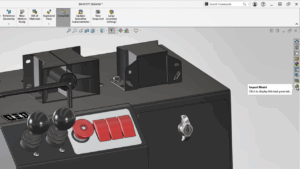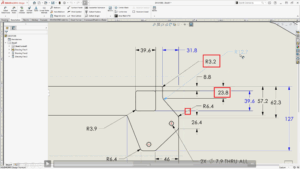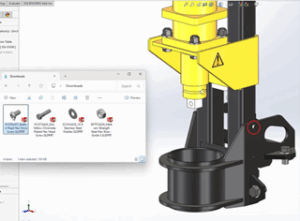


The neutral files are the generic file formats used to share models or drawings between different CAD software. Different CAD software uses their own native file formats (e.g., .SLDPRT for SolidWorks), which often cause difficulties in opening or using them directly in other systems. Hence, the CAD operators use Neutral file formats to share models or drawings between different CAD software. Generally used Neutral file formats are.STEP,.IGES etc.
SOLIDWORKS allows designers to import or export neutral files. While importing the neutral file and exporting to the neutral file, they may face issues reading or editing the components. Below are the best practices for the Neutral file conversion with SOLIDWORKS.
Conversion of SOLIDWORKS files to neutral files:
1. Pack and go
Using the SOLIDWORKS Pack and Go tool is extremely helpful when preparing files for neutral format conversion, especially for assemblies. It ensures all referenced components and related files are included in a single, portable location, preventing missing references that can cause conversion errors.
Key capabilities of Pack include the following:
- Avoids Missing Files: Collects all parts, sub-assemblies, and drawings so nothing gets lost during conversion.
- Creates a Safe Copy: Makes a clean, separate version of your project that will not be affected by future changes.
- Includes complete file set: Gives you a full list of related files (like drawings and appearances), so you can choose what to include.
- Makes Conversion Easier: Puts everything in one place, allowing for fast and easy one-step conversion to a neutral file format.
Systematic Process for the Pack and go:
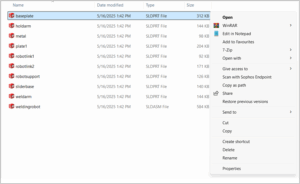
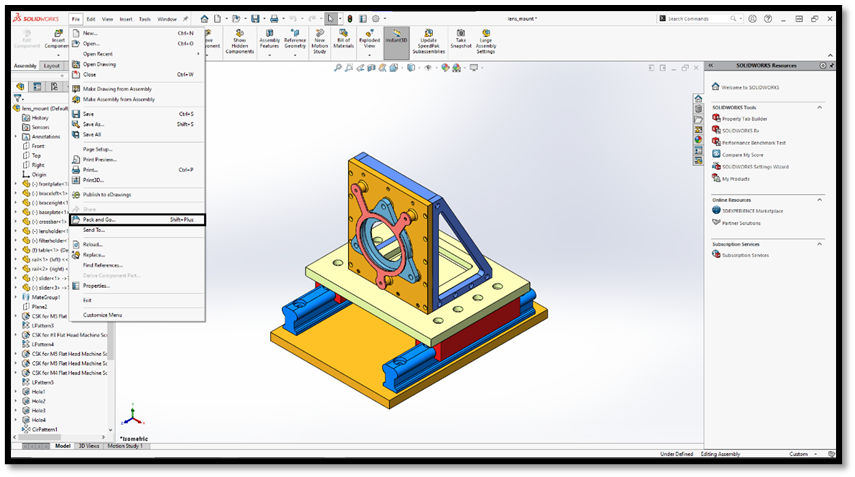
- Run Pack and Go: Start the command from inside SOLIDWORKS via File > Pack and Go, or by right-clicking the assembly file in Windows File Explorer.
- Save to a new location: In the Pack and Go dialog, choose “Save to Zip file” or “Save to Folder,” and select a new, dedicated destination. This is a critical step to break the link with your original, scattered files and avoid corrupting your working model.
2. Exporting file from the new package: Open the newly created Pack and Go folder. Open the top-level assembly from this new location. Below is the step-by-step process for file export.
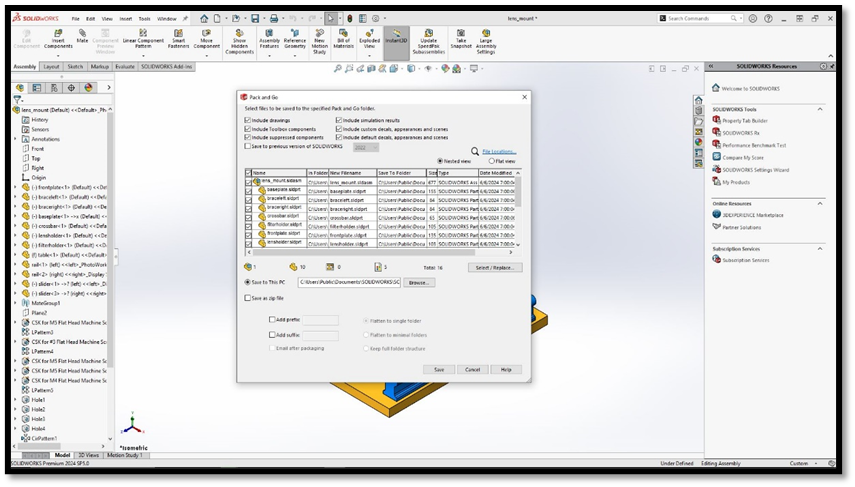
- Save as a neutral file: With the consolidated assembly open, go to File > Save As and choose your desired neutral file format, such as STEP or IGES. Because all references are correctly located within this folder, the conversion will be successful.
- Configure Export Options:
- After selecting the file type, click the “Options” button.
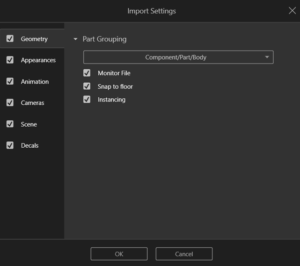
- This will open a “System Options” or “Export Options” dialog box specific to the chosen file type.

- Configure settings such as:
- Version: For formats like STEP, you might choose a particular version (e.g., AP203 or AP214).
- Output elements: Select whether to include surfaces, solid bodies, wireframe geometry, hidden entities, etc.
- Resolution/Tolerance: For formats like STL, define the mesh resolution.
- Units: Ensure units are consistent with the receiving system.
- Click “OK” to apply the options.
- Specify File Name and Location:
- Choose a file name and the location where you want to save the neutral file.
- Save/Export the File:
Click “Save” or “Export” to complete the conversion.
Converting SOLIDWORKS files to neutral formats like .STEP or .IGES is a critical step for collaborative engineering. The fundamental lesson is that preparation is everything. By diligently using the Pack and Go utility first, you centralize all referenced components, eliminate missing file errors, and create a clean environment for a successful conversion. Following the systematic process of packaging, opening the new package, and configuring the export options (especially verifying the correct version and units) is the most reliable way to ensure that your design intent is perfectly preserved and readable by any receiving CAD system.
If your team is growing and you need to equip more designers with best-in-class tools, explore our flexible new license purchase plans tailored for expanding firms.
For detailed conversion support, questions about licensing, or technical assistance with your existing SOLIDWORKS installation, please Contact Us directly and our support team will be happy to assist you.

About Author:
Rashmitha R Shetty is working in the SOLIDWORKS Online Support Team at Conceptia Konnect, managing customer queries and ensuring an efficient, positive support experience. She hold a Bachelor’s degree in Mechanical Engineering and have a strong foundation in SOLIDWORKS customer service. Her technical knowledge, combined with practical support experience, allows her to provide clear insights and dependable guidance through her blogs.