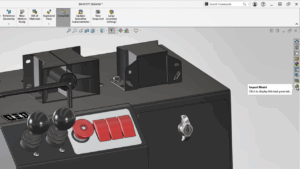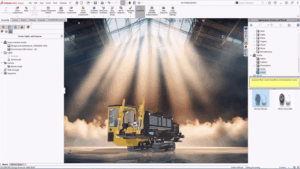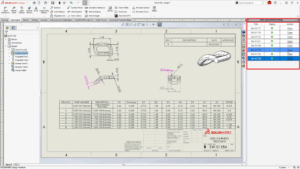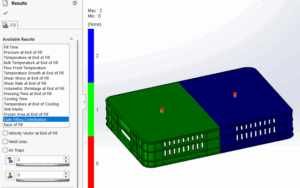


eDrawings is a powerful tool that allows anyone to communicate and collaborate using 3D CAD data, minimizing errors and shortening the product development cycle. Seamlessly integrated with SOLIDWORKS, it functions as both preview and markup for reviewing SOLIDWORKS files.
When sharing the data, it is crucial to maintain the SOLIDWORKS file, especially assemblies_ clean and error free while exporting as an eDrawings file for the accurate and trouble-free visualization. Here are guidelines to validate your SOLIDWORKS files before export.
1. Maintain File References:
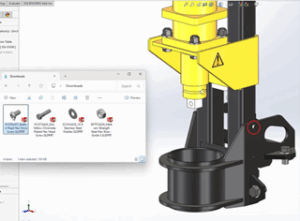
Incorrect or lost references can result in missing components, suppressed features, or broken mates, which affect the integrity of the model leading to incomplete exports or inaccurate visualizations with tools like eDrawings. Therefore, make sure to maintain the file references with SOLIDWORKS files before proceeding with the file export operation. Below are a few factors to be considered while working with SOLIDWORKS files:
- Make sure that you have stable internet connection while working with files on Network Storage Drive or Cloud Storage such as OneDrive.
- Maintain the file references intact by storing all files and references within the same folder.
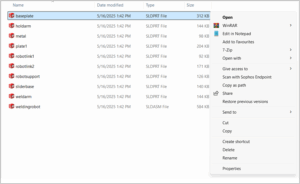
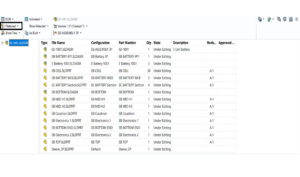
- Avoid moving the file with ‘Cut’ & ‘Paste’ operations. You can use SOLIDWORKS ‘Submenu’ with the ‘Where Used’ capability to copy or move the files.
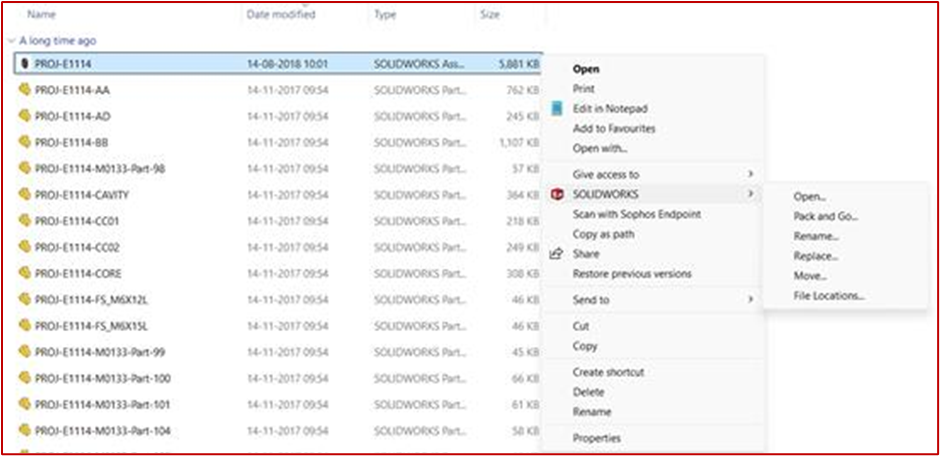
d. Use ‘Pack and Go’ to gather all referenced parts, assemblies, and drawings including the display properties such as appearances, decals, etc., in a unique file location.
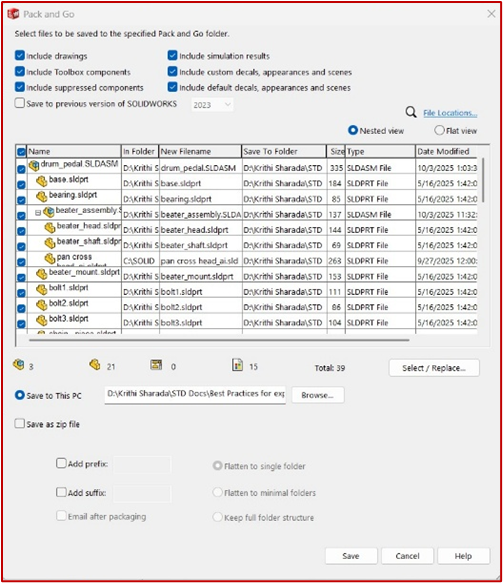
e. If the SOLIDWORKS file or any of its referenced components are corrupted, eDrawings may not be able to process the data correctly. Ensure that all files and references are intact, and if there are signs of corruption, repair them before exporting to .easm.
2. Clear the Error and Warnings:
Errors and warnings within SOLIDWORKS files can cause solving issues, leading to longer save time or even application crashes during file export. Additionally, these problems may result in exported files that experience performance issues or display inaccuracies when viewed in eDrawings environment. To ensure reliable exports and optimal viewing experiences, it is essential to identify and resolve any errors or warnings in the SOLIDWORKS files before proceeding with the export.
Below are the few best practices to avoid such issues:
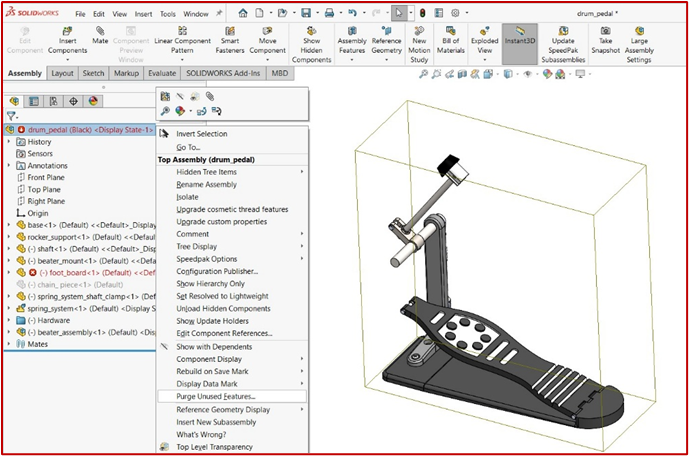
- Resolve all the rebuild errors and feature tree warnings before saving.
- Suppress or Delete unused features, Components and Configurations in the model.
- Use the ‘Purge Unused Data’ option to remove unused sketches, planes, and features in the design.
3. Simplify the Model if feasible:
eDrawings is built primarily for viewing – the eDrawings files, especially for large assemblies, can experience performance issues due to a variety of factors related to model complexity, graphics processing, and file structure. Always consider simplifying the model according to your requirement as follows:
- Suppress or delete the complex geometries and fillets, if they are not needed for external visualization.
- Remove the features that are not part of the visualization such as internal components, small holes or cosmetic threads. You can use the ‘Defeature’ command for both SOLIDWORKS Part and Assemblies.
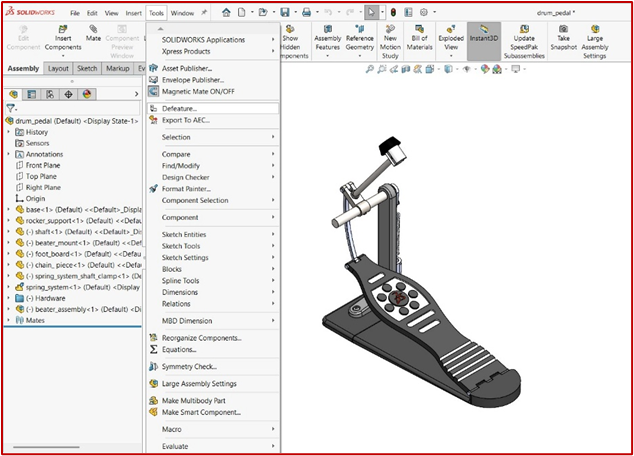
c. While exporting, use ‘Display States’ instead of ‘Configurations’ or use only necessary ‘Configurations’.
4. Verify the Configurations and Display States:
Configurations in an assembly always increases the size of the file and the improperly hidden or suppressed components in the different configurations cause the visibility and performance issue in eDrawings.
Below are a few factors to be verified with configurations before exporting file from SOLIDWORKS as eDrawings:
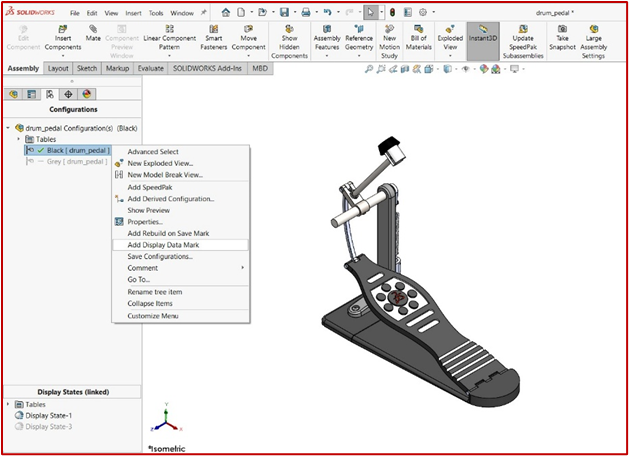
- If you are exporting the specific configuration, set the correct configuration as ‘Active’ before export.
- eDrawings uses saved display data from SOLIDWORKS to render different configurations. Therefore, enable ‘Add Display Data Mark’ option for the required configurations in the assembly.
c. If the SOLIDWORKS assembly is in ‘Lightweight’ mode, configuration-specific properties for components are not included. Make sure that, the assembly is in ‘Resolved’ mode while exporting to eDrawings format (.easm) to avoid possible inconsistencies and visibility issues.
d. Validate Appearances, Transparency and Display Style in the different configurations and rebuild the file to update the changes.
e. Display states can be considered independent of configurations. Consider verifying if the display states are linked to their respective configurations in SOLIDWORKS before exporting.
5. Export Method:
The export method plays a crucial role in how SOLIDWORKS data is interpreted and displayed in eDrawings. It directly affects file integrity, performance, compatibility, and visualization accuracy in the eDrawings.
Please refer the below aspects while exporting the files to eDrawings:
- While the ‘Save As’ option can be used to export SOLIDWORKS files as eDrawings, it is recommended to use the ‘Publish to eDrawings’ option available under the ‘File’ menu.
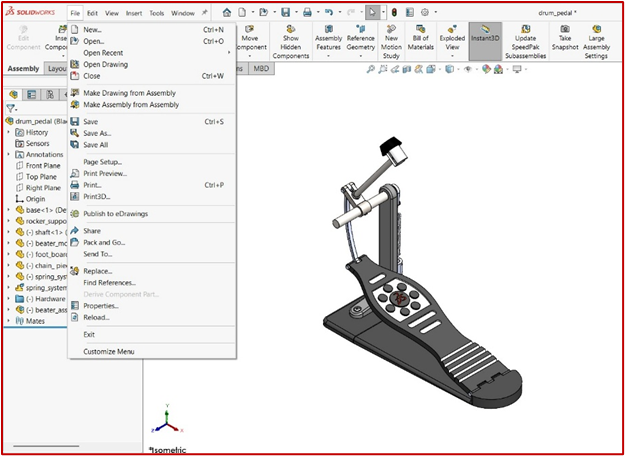
b. Review export options by clicking the ‘Options’ button in the publish dialog box and ensure ‘Save file properties’ is selected.
c. Review the Security and Sharing Settings and add the Password protection if necessary.
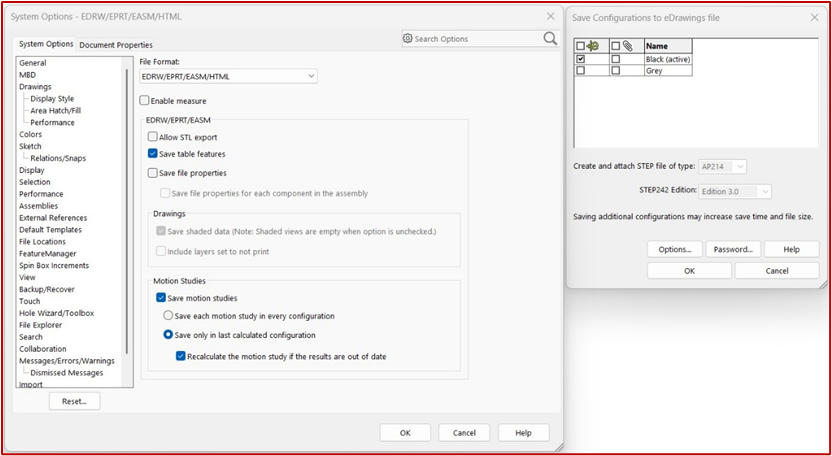
d. In case of file corruption, save the published eDrawings file as a new file and not overwriting a potentially corrupted one.
e. In some cases, files created in a newer version of SOLIDWORKS with an older version of eDrawings can cause display issues. Always check the application versions while working with eDrawings.
The above-mentioned best practices will allow you to work in an error-free environment with eDrawings files, ensuring smooth collaboration and accurate communication of your designs. By following these guidelines, you can minimize common issues related to file references, configurations, and export methods, ultimately saving time and enhancing productivity.
In case you encounter any challenges or require further assistance, please do not hesitate to contact Conceptia Konnect. Our team of experts is always ready to support you and help optimize your workflow for the best results.
You can contact us “by mail” at [email protected] or “toll-free number” 1800-425-8959.