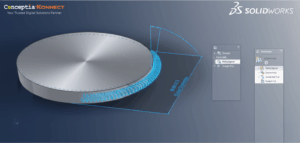


Reference planes are essential tools in SOLIDWORKS that help you build features not aligned with the default front, top, or right planes. One common requirement for designers is to create a reference plane at an angle—ideal for lofts, angled cuts, holes, or sketches that aren’t orthogonal to default geometry.

In this blog, we’ll walk through the steps to create an angled reference plane in SOLIDWORKS and cover some tips to avoid common mistakes.
When do we need an inclined Plane?
- Creating inclined holes, cuts or extrudes
- Sketching on non-standard geometry
- Creating lofts or sweeps between inclined profiles.
- Creating features relative to an inclined face
How to Create a Reference Plane at an Angle
1. Open Your Model
Open the part or assembly where you want to create the angled plane.
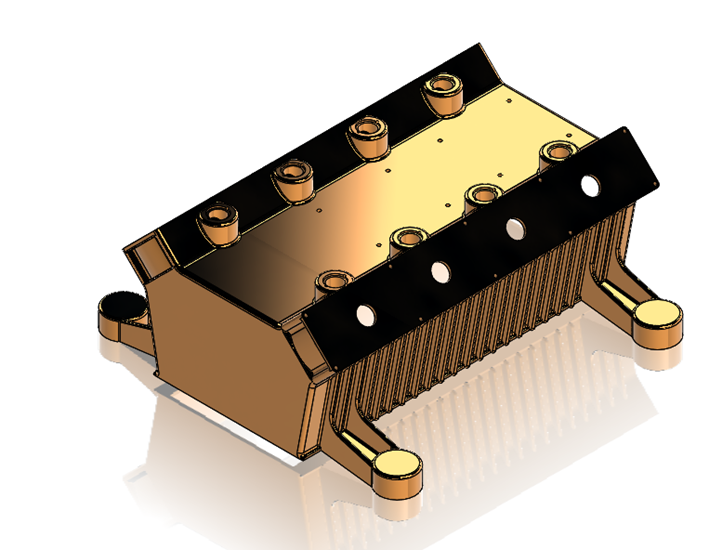
2. Access the Reference Geometry Tool
Go to the Features tab on the Command Manager and click:
Reference Geometry → Plane

3. Select a Base Reference
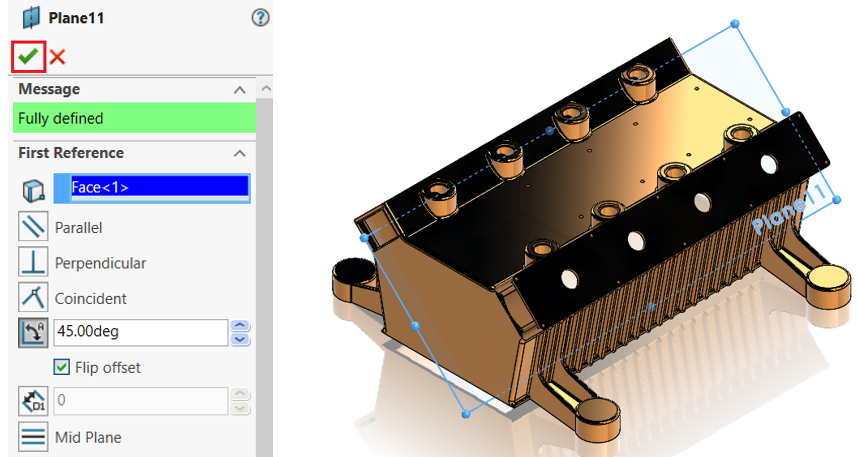
Choose a face, edge, or existing plane as the first reference. This will be the anchor for the new angled plane.
4. Add an Angular Reference
To define the angle, select:
- A line, axis or edge that will define the axis of rotation.
- Then, enter the angle in the dialogue box.
SOLIDWORKS will rotate the new plane around the axis by the angle you specify.

If you select a face or plane, and then a line or edge, SOLIDWORKS takes the second entity as the rotation axis.
5. Adjust the Flip Side (If needed) Click the flip arrow to place the plane on the desired side of the reference.

6. Confirm
Click ✅ OK to create the new plane.
Common Mistakes
- Angular reference (edge/axis), which we had taken for reference should be linear otherwise SOLIDWORKS won’t accept it.
- If your plane seems invisible, try adjusting your view or hiding other planes temporarily.
Conclusion
Mastering angled reference plane unlocks more advanced design capabilities in SOLIDWORKS. Whether you’re creating complex surface transitions or simply placing a feature on an inclined face, this tool plays a pivotal role in precision and control.
Have questions or want technical demonstration? Drop a comment or contact us!
About Author:

Mohamed Riswan M is a Solution Associate based out of Chennai, Tamil Nadu. He has completed Bachelor degree in Mechanical Engineering. He had joined Conceptia Konnect team in August, 2023 and has a good experience in SOLIDWORKS & 3DEXPERIENCE Works solutions.